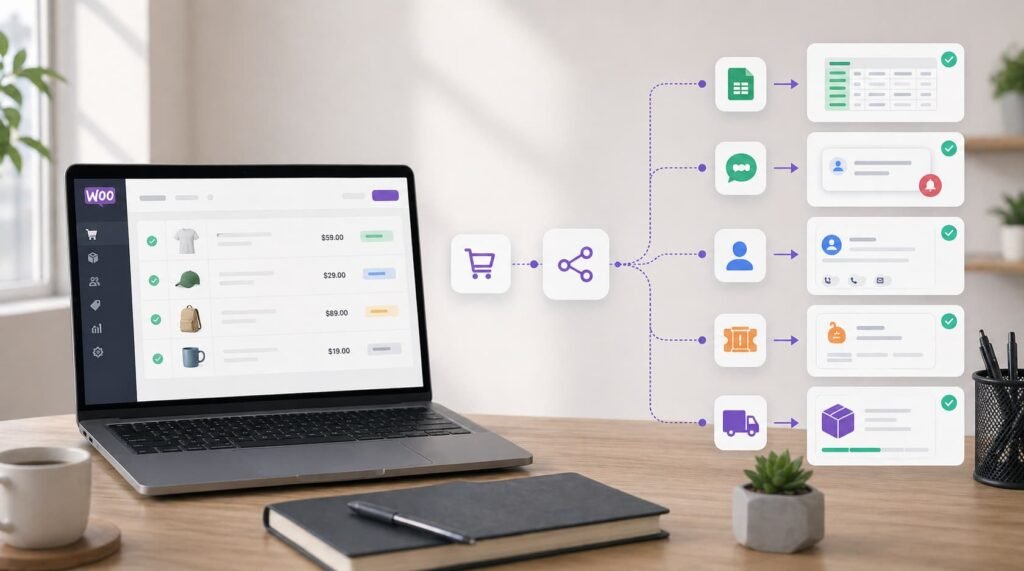
Automating WooCommerce tasks saves time because it removes the small manual jobs that repeat across every order, customer update, refund, support request, and report. A single task might take only two minutes. But when it happens 50 times a week, it quietly turns into hours of admin work.
For most WooCommerce stores, the biggest time drain is not one huge task. It is the daily loop of checking orders, copying data, updating spreadsheets, notifying teammates, creating tickets, tagging customers, and fixing missed handoffs.
Automation helps by turning those repeated steps into workflows. WooCommerce creates the event, such as a new order or updated customer. Your automation tool catches that event, applies the rules you choose, and sends the right data to the right place.
The result is not just faster work. It is fewer missed details, cleaner operations, and more time for the work that actually grows the store.
Quick answer: why WooCommerce automation saves time
WooCommerce automation saves hours every week by handling repetitive store tasks automatically. It can send order alerts, update spreadsheets, sync customers to a CRM, create support tickets, trigger fulfillment tasks, tag buyers, send reports, and route exceptions without someone manually checking the WooCommerce dashboard all day.
The best tasks to automate are tasks that are:
- Repetitive
- Rule-based
- Easy to define
- Triggered by store events
- Often copied between multiple tools
- Costly when someone forgets them
Automation works especially well when WooCommerce needs to talk to other systems, such as Google Sheets, Slack, Airtable, HubSpot, Mailchimp, Help Scout, shipping tools, inventory systems, or accounting workflows.
The hidden cost of manual WooCommerce work
Manual WooCommerce work often feels manageable because each task is small.
You check a new order. You copy the customer name. You paste the email into a spreadsheet. You send a Slack message. You update a fulfillment tracker. You check whether payment succeeded. You tag the customer in your email tool.
None of that feels like a major project. But it adds up.
Imagine a store gets 80 orders a week. If each order creates just three minutes of manual admin, that is four hours every week. If the team also handles refunds, failed payments, product updates, support tickets, and reporting, the real number can be much higher.
The bigger problem is context switching. A store owner or operations assistant does not lose only the two minutes spent copying data. They also lose focus every time they stop what they are doing to check WooCommerce, respond to a notification, open another tool, and confirm whether something was handled.
Automation saves time by removing that repeated interruption.
What WooCommerce tasks are worth automating?
The best WooCommerce automations are not the flashiest. They are the boring workflows that happen constantly and follow predictable rules.
Order notifications
Automate alerts for new orders, high-value orders, failed payments, refunded orders, backorders, or orders using specific shipping methods.
Example:
New order over $500 > Send Slack alert to sales and operations
This saves time because the team does not need to keep refreshing the WooCommerce dashboard.
Order tracking and spreadsheets
Many stores still use spreadsheets for finance, fulfillment, forecasting, or operations. Automation can add new WooCommerce orders to Google Sheets or Airtable as soon as they arrive.
Example:
New paid order > Format order fields > Add row to weekly sales tracker
This removes manual copying and keeps reporting cleaner.
Customer syncs
New customers can be added to your CRM, email marketing platform, support desk, or customer database automatically.
Example:
New customer > Add to CRM > Tag by product category > Add to welcome segment
This saves time for marketing and support teams that need customer records to stay current.
Fulfillment handoffs
WooCommerce orders often need to move from the store to a warehouse, supplier, shipping team, or internal tracker. Automation can route orders based on shipping method, location, product type, or order value.
Example:
New order > Check product category > Send fulfillment email to the right supplier
This is one of the highest-value automations because missed handoffs directly affect customers.
Support ticket creation
Automation can create support tickets when an order fails, a refund is issued, a payment needs attention, or a VIP customer places an order.
Example:
Order status changes to failed > Create support ticket > Notify customer support
This helps the team respond before the customer has to chase an answer.
Reporting
Daily, weekly, or monthly reports can be generated automatically from WooCommerce data.
Example:
Every Monday at 9 AM > Get last week’s completed orders > Send sales summary to team
This saves time for founders and managers who otherwise build the same report manually.
Product and inventory updates
If product data lives in more than one system, automation can help keep WooCommerce updated.
Example:
Inventory system changes stock count > Update WooCommerce product stock
This reduces manual product admin and lowers the risk of overselling.
How automation saves hours in real store workflows
WooCommerce automation saves time in a few practical ways.
It removes repeated data entry
Copying order data into spreadsheets, CRMs, shipping tools, and support systems is exactly the kind of work automation should handle.
Manual data entry also creates errors. A mistyped order number or missing email address can cause delays later. Automation keeps the same data moving from WooCommerce into other systems without retyping.
It reduces dashboard checking
Without automation, someone has to keep checking WooCommerce to see what changed.
With automation, important changes come to the team automatically. A new high-value order can trigger a Slack message. A failed payment can create a support ticket. A refund can notify finance.
This saves time because the team can work from exceptions instead of constantly monitoring everything.
It speeds up handoffs
Ecommerce work often depends on handoffs: sales to fulfillment, support to finance, operations to suppliers, marketing to CRM.
Manual handoffs are slow because they rely on someone remembering to send the right message. Automation makes the handoff happen as soon as the trigger occurs.
It keeps tools in sync
WooCommerce rarely runs alone. Most stores also use email platforms, spreadsheets, CRMs, help desks, shipping tools, analytics tools, and accounting systems.
Automation saves time by keeping those tools updated without requiring the same customer or order data to be entered several times.
It standardizes routine decisions
Some store decisions are rule-based.
For example:
- If the order value is over $500, notify a manager.
- If the shipping country is outside your main market, flag the order.
- If the order status changes to failed, create a ticket.
- If the product category is wholesale, route it to a different fulfillment process.
Automation handles these rules consistently, which saves time and reduces back-and-forth.
Example: one new-order workflow that replaces five manual steps
Here is a simple example of how one WooCommerce automation can save time every week.
Manual process:
- Open WooCommerce and check for new orders.
- Copy the order into a spreadsheet.
- Send a Slack message to the operations team.
- Add the customer to a CRM.
- Email the fulfillment team if the order uses a certain shipping method.
Automated workflow:
- New WooCommerce order triggers the workflow.
- The workflow formats the order details.
- The order is added to Google Sheets.
- A Slack message is sent to the operations channel.
- The customer is added or updated in the CRM.
- If the shipping method matches your rule, the fulfillment team gets an email.
This workflow does not need to be complex. It simply removes a repeated admin loop.
If the manual version takes five minutes per order and the store gets 40 orders a week, that is more than three hours saved from one workflow. Even if the real saving is half that, the team still gets time back every week and avoids repetitive copying.
Where WooCommerce automation also reduces errors
Time savings are the obvious benefit. Error reduction is often the bigger operational win.
Manual processes break in predictable places:
- Someone forgets to update the order tracker.
- A customer email is copied incorrectly.
- A refund is not logged for finance.
- A failed payment is missed.
- A supplier receives incomplete order details.
- A high-value customer is not flagged.
- The team finds out about an issue after the customer complains.
Automation reduces these errors by making the process consistent. The workflow follows the same steps every time.
That does not mean automation should replace human judgment. It should handle the routine movement of data so people can spend more attention on exceptions, customer experience, and decisions that need context.
What not to automate too early
Not every WooCommerce task should be automated right away.
Avoid automating a process if:
- The steps are unclear.
- The rule changes every few days.
- The task requires human judgment.
- The data is inconsistent or unreliable.
- A mistake would create a customer-facing problem.
- You have not tested the workflow with real orders.
For example, fully automating refunds may be risky if your refund decisions depend on customer history, product condition, fraud signals, or support context. A better first automation might be: when a refund is created, notify finance and add it to a tracker.
Good automation does not remove people from important decisions. It removes the busywork around those decisions.
How to choose your first WooCommerce automation
Start with a task that is frequent, simple, and annoying.
Use this quick scoring method:
| Question | Why it matters |
|---|---|
| Does this happen every day or every week? | Frequent tasks create the biggest time savings. |
| Does it follow clear rules? | Clear rules are easier to automate safely. |
| Does it involve copying data between tools? | Data movement is a strong automation candidate. |
| Does forgetting it cause problems? | Automation can reduce missed handoffs. |
| Can you test it without risking customers? | Safe testing makes rollout easier. |
Good first automations include:
- Send new order alerts to Slack.
- Add new orders to Google Sheets.
- Create a support ticket for failed payments.
- Add new customers to a CRM.
- Send a daily sales summary.
- Notify finance when an order is refunded.
Once the first workflow is reliable, you can add filters, branches, and extra steps.
Tools you can use to automate WooCommerce tasks
You have several options for WooCommerce automation.
WooCommerce settings and extensions
Some automations can be handled with WooCommerce settings, emails, and plugins. This is often enough for basic store notifications or plugin-specific tasks.
The tradeoff is flexibility. Plugins can be convenient, but each one usually solves a narrow problem.
Zapier
Zapier is useful for simple app-to-app automations. It is beginner-friendly and works well when you need a quick workflow between common tools.
The tradeoff is that complex logic, high task volume, and custom API work can become limiting or expensive.
Make
Make is a visual automation platform that can handle multi-step workflows and data transformation. It is often used for more flexible no-code automations.
The tradeoff is that beginners may need time to understand scenarios, routers, and data mapping.
n8n
n8n is a strong option for WooCommerce stores that want flexible workflows, custom logic, API access, and the option to self-host. It can use WooCommerce nodes, trigger events, webhooks, and HTTP requests to connect WooCommerce with the rest of your stack.
If you are new to it, start with a beginner guide to n8n and WooCommerce before building complex workflows.
Custom development
Custom development makes sense when your workflow is business-critical, unique, or tightly connected to internal systems.
The tradeoff is cost and maintenance. For many stores, it is better to prove the workflow with an automation tool before turning it into custom software.
The real value: fewer interruptions, not just faster tasks
The best reason to automate WooCommerce tasks is not that it makes your store feel more technical. It is that it gives your team fewer tiny things to remember.
Every store has operational drag: the order that needs to be copied, the customer who needs to be tagged, the refund that needs to be logged, the supplier who needs the order details, the report that has to be built every Monday.
Automation turns those repeated tasks into a system.
Start small. Pick one workflow that wastes time every week. Automate it, test it, and watch how many manual touches disappear. Then move to the next one.
That is how WooCommerce automation saves hours: one repeated task at a time.
FAQ
Start with frequent, rule-based tasks such as new order alerts, order spreadsheet updates, customer CRM syncs, failed payment tickets, refund notifications, and daily or weekly sales reports.
WooCommerce automation saves time by removing repeated manual steps like copying order data, checking statuses, updating spreadsheets, notifying teams, creating tickets, and syncing customer records across tools.
Yes. Small stores often benefit the most because the same person handles orders, support, reporting, and marketing. Automating even one repeated workflow can save several hours a month.
Basic automations can be simple if you use tools like WooCommerce extensions, Zapier, Make, or n8n. More advanced workflows may require API knowledge, webhook setup, or help from a technical specialist.
Avoid automating tasks that require judgment, have unclear rules, use unreliable data, or could create customer-facing errors if they run incorrectly. Start by automating notifications and data movement before automating decisions.
Yes. Tools like n8n, Zapier, Make, and some WooCommerce plugins can send new order details to Google Sheets automatically when an order is created or updated.
Not always. Plugins are useful for specific store features. Automation tools are better when you need WooCommerce to connect with multiple external apps or follow custom workflow rules.
n8n is a good option when you need flexible WooCommerce workflows, custom logic, API calls, webhooks, or self-hosting. It may be more powerful than needed for a single simple automation.
Conclusion
Automating WooCommerce tasks saves hours every week because it removes repeated admin work from your store operations. New orders, customer updates, refunds, reports, support tickets, and fulfillment handoffs can all trigger workflows instead of manual checklists.
The best approach is not to automate everything at once. Start with one task that happens often and follows clear rules. Build a simple workflow, test it with real store data, and improve it over time.
When done well, WooCommerce automation gives your team fewer interruptions, fewer errors, and more time for the work that actually improves the store.