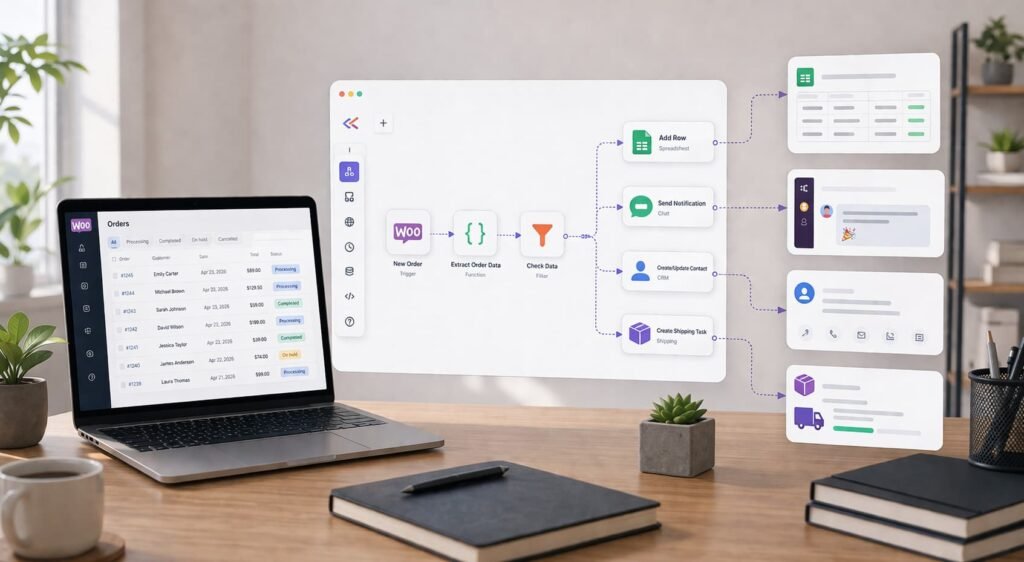
N8N is a workflow automation tool that connects apps, moves data between them, and runs business processes with little or no code. For WooCommerce stores, n8n can automate tasks like sending new orders to a spreadsheet, notifying your team in Slack, syncing customers to a CRM, updating products, or triggering follow-up workflows when an order changes.
The simplest way to think about it: WooCommerce stores the ecommerce data, and n8n decides what should happen next.
Instead of manually copying order details, checking for new customers, updating systems, or sending the same messages every day, you build a workflow once. n8n watches for the right event, pulls in the data, applies your rules, and sends that data wherever it needs to go.
Quick answer: what is n8n?
n8n is a workflow automation platform. It lets you connect apps and APIs using visual workflows made of nodes. Each node performs a job, such as starting a workflow, reading WooCommerce orders, filtering data, sending a Slack message, updating a spreadsheet, or calling another app’s API.
For WooCommerce, n8n is useful because online stores create a steady stream of events: new orders, changed order statuses, new customers, updated products, refunds, support requests, inventory changes, and reporting needs. n8n turns those events into automated workflows.
For example, a WooCommerce order can trigger a workflow that:
- Captures the order details.
- Checks whether the order total is above a certain amount.
- Adds the customer to a CRM.
- Sends the warehouse a fulfillment message.
- Posts a sales alert in Slack.
- Adds the order to a reporting spreadsheet.
That whole process can run without a team member touching each order.
How n8n works in simple terms
n8n workflows are built from connected blocks called nodes. A workflow starts with a trigger node, then passes data through action nodes.
Here are the basic pieces beginners need to understand.
Workflows
A workflow is the full automation. It is the map of what should happen from start to finish.
A WooCommerce workflow might be:
New order in WooCommerce > Check order value > Add row to Google Sheets > Send Slack notification > Create shipping task
Each step is handled by a node.
Nodes
Nodes are the building blocks of n8n. A node can start a workflow, fetch data, change data, send data, or perform an action in another app.
For WooCommerce automation, you may use:
- A WooCommerce Trigger node to start when a store event happens.
- A WooCommerce node to create, retrieve, update, or delete store records.
- An IF node to branch the workflow based on conditions.
- A Google Sheets, Airtable, Slack, Gmail, Notion, HubSpot, or HTTP Request node to send data elsewhere.
Triggers
A trigger is what starts the workflow.
In a WooCommerce context, the trigger might be:
- A new order is created.
- An order is updated.
- A customer is created.
- A product is updated.
- A coupon is deleted.
- A scheduled time arrives, such as every morning at 9 AM.
- A webhook receives data from WooCommerce or another service.
Triggers matter because they define when automation should run. A real-time order alert needs an event trigger. A daily sales report needs a schedule trigger.
Actions
Actions are the tasks n8n performs after the workflow starts.
For example:
- Get the full WooCommerce order.
- Add the customer to your email platform.
- Send the order to your fulfillment team.
- Update a product.
- Create a support ticket.
- Send a message to Slack.
- Call a custom API endpoint.
Most useful workflows combine one trigger with several actions.
Credentials
Credentials are the secure connection details n8n uses to access WooCommerce and other apps.
For WooCommerce, this usually means an API Consumer Key, a Consumer Secret, and your WooCommerce store URL. These let n8n authenticate with your WordPress/WooCommerce site and perform allowed actions through the WooCommerce API.
Executions
An execution is one run of a workflow.
If 10 WooCommerce orders come in and each order starts the workflow, that is 10 executions. This is useful when debugging because you can inspect what data came in, which node ran, and where an error happened.
How n8n connects to WooCommerce
n8n connects to WooCommerce mainly through WooCommerce API credentials, WooCommerce nodes, and webhook-based triggers.
The built-in WooCommerce node supports common store operations across customers, orders, and products. The WooCommerce Trigger node can start workflows from store events such as order creation, order updates, customer creation, product updates, coupon changes, and deletion events.
In plain English, there are two common connection patterns.
Pattern 1: WooCommerce starts the workflow
This is event-based automation.
Example:
A customer places an order. WooCommerce sends the event to n8n. n8n starts a workflow and sends the order details to Google Sheets, Slack, your CRM, and your fulfillment system.
Use this pattern when speed matters, such as order alerts, fulfillment handoffs, fraud review, or customer follow-up.
Pattern 2: n8n checks WooCommerce or updates it
This is action-based automation.
Example:
Every morning, n8n gets all WooCommerce orders from the previous day, filters completed orders, calculates totals, and sends a sales summary to your team.
Use this pattern for reports, scheduled syncs, cleanup tasks, and batch updates.
What about unsupported WooCommerce actions?
The built-in WooCommerce node covers common customer, order, and product operations. If you need an operation the node does not support, n8n can use its HTTP Request node to call the WooCommerce REST API directly.
This matters because WooCommerce stores often have custom plugins, custom fields, and advanced use cases. The visual WooCommerce node may be enough for most beginner workflows, but the HTTP Request node gives you a path when you need more control.
What you can automate in WooCommerce with n8n
n8n is most useful when a WooCommerce task is repetitive, rule-based, or involves moving data between systems.
Here are practical examples.
Order notifications
You can send new order alerts to Slack, Discord, Microsoft Teams, email, or SMS.
Example workflow:
New WooCommerce order > If order total is above $500 > Send priority alert to sales team
This helps teams spot high-value orders quickly instead of waiting for someone to check the dashboard.
Order tracking and reporting
You can log orders into Google Sheets, Airtable, Notion, a database, or a business intelligence tool.
Example workflow:
New order > Format order details > Add row to Google Sheets > Send daily summary
This is useful for smaller stores that still rely on spreadsheets for operations and finance.
Customer syncs
You can send new WooCommerce customers to a CRM, email marketing tool, support desk, or onboarding sequence.
Example workflow:
Customer created > Check customer country > Add to CRM list > Tag by product category
This keeps marketing and sales systems aligned with store activity.
Fulfillment handoffs
You can route orders to the right warehouse, supplier, or team based on product, location, shipping method, or order value.
Example workflow:
New paid order > Check shipping method > Create fulfillment task > Email supplier
This reduces the risk of missed handoffs when order volume grows.
Product updates
You can retrieve, update, or sync product information across systems.
Example workflow:
Inventory system update > Find WooCommerce product > Update product stock or price
This is useful if WooCommerce is not the only place where product data lives.
Support workflows
You can create support tickets from order events or customer messages.
Example workflow:
Order status changes to failed > Create support ticket > Notify customer success team
This helps your team respond before a customer complains.
Refund and exception handling
You can flag orders that need attention, such as failed payments, refunded orders, suspicious high-value orders, or orders missing shipping data.
Example workflow:
Order updated > If status equals refunded > Add to refund tracker > Notify finance
This gives you a lightweight operations layer without building a custom admin system.
Beginner example: send new WooCommerce orders to Google Sheets and Slack
Here is a simple WooCommerce automation example a beginner can understand.
Goal: every time a new WooCommerce order is created, add the order to Google Sheets and notify the team in Slack.
The workflow would look like this:
- WooCommerce Trigger: Starts when an order is created.
- WooCommerce node: Gets the full order details if the trigger data does not include everything you need.
- Set or Edit Fields node: Keeps only the fields you care about, such as order ID, customer name, email, total, currency, payment method, and status.
- Google Sheets node: Adds the order as a new row.
- Slack node: Sends a message to your ecommerce or operations channel.
The Slack message might say:
New WooCommerce order received: Order #1048 for $129.00 from Priya S. Payment status: processing.
You can later improve this workflow by adding rules:
- If the order value is above $500, notify a manager.
- If the product belongs to a certain category, alert a specific fulfillment team.
- If the customer is from a target country, tag them in your CRM.
- If payment failed, create a support task instead of a fulfillment task.
This is the value of n8n: you can start with a simple automation, then add logic as your store processes become clearer.
What you need before connecting WooCommerce to n8n
Before you connect WooCommerce to n8n, make sure the basics are in place.
1. A working WordPress site with WooCommerce installed
n8n connects to WooCommerce through your WordPress/WooCommerce site. The WooCommerce plugin must be installed and active.
2. Non-plain WordPress permalinks
WooCommerce API connections usually require WordPress permalinks to be set to something other than Plain. In WordPress, go to Settings > Permalinks and choose a readable structure such as Post name.
3. WooCommerce REST API keys
In WordPress, go to WooCommerce > Settings > Advanced > REST API and create a key.
For most automation workflows, choose Read/Write permissions if n8n needs to both read and update WooCommerce data. If a workflow only reads orders for reporting, Read permissions may be enough.
You will get:
- Consumer Key
- Consumer Secret
Store these securely. Treat them like passwords.
4. Your WooCommerce store URL
n8n needs the base URL of your WooCommerce site. Use the real public site URL, including HTTPS.
5. An n8n account or self-hosted n8n instance
You can use n8n Cloud or self-host n8n. Beginners often start with cloud hosting because there is less infrastructure to manage. More technical teams may prefer self-hosting for control, privacy, or internal network access.
6. Access to the apps you want to connect
If your workflow sends orders to Slack, Google Sheets, Airtable, HubSpot, Gmail, or another system, you will also need credentials for those apps.
n8n WooCommerce nodes explained
n8n has two WooCommerce-related node types beginners should know.
WooCommerce Trigger node
The WooCommerce Trigger node starts a workflow when a WooCommerce event happens.
Supported event types include:
- coupon.created
- coupon.updated
- coupon.deleted
- customer.created
- customer.updated
- customer.deleted
- order.created
- order.updated
- order.deleted
- product.created
- product.updated
- product.deleted
Use this when you want WooCommerce activity to start automation in real time.
WooCommerce node
The WooCommerce node performs actions with WooCommerce data.
It supports common operations for:
- Customers: create, delete, retrieve, retrieve all, update
- Orders: create, delete, get, get all, update
- Products: create, delete, get, get all, update
Use this when your workflow needs to read or change WooCommerce records.
Webhook node
The Webhook node is a general n8n trigger that receives data from external systems. WooCommerce has its own webhook system, so advanced users can create a WooCommerce webhook and point it to an n8n Webhook URL.
For beginners, the WooCommerce Trigger node is usually easier. The Webhook node becomes useful when you need a custom event, a plugin-specific payload, or a non-standard integration.
HTTP Request node
The HTTP Request node lets n8n call APIs directly.
Use it when:
- The built-in WooCommerce node does not support the endpoint you need.
- A plugin adds custom WooCommerce API behavior.
- You need more control over the request.
- You want to connect WooCommerce with a system that does not have a dedicated n8n node.
This is where n8n becomes more flexible than many simple no-code automation tools.
n8n vs Zapier for WooCommerce automation
Many beginners compare n8n with Zapier because both tools automate work between apps. The best choice depends on how much control you need.
| Factor | n8n | Zapier |
|---|---|---|
| Beginner friendliness | Visual, but more technical | Usually easier for simple automations |
| Flexibility | Strong for custom logic, APIs, branching, and self-hosting | Strong for common app-to-app workflows |
| Hosting | Cloud or self-hosted | Cloud-based |
| WooCommerce use cases | Good for custom store operations and multi-step workflows | Good for quick app connections |
| Best fit | Store owners or teams that want control and deeper workflow logic | Beginners who want the fastest simple setup |
Choose n8n if you want more control, expect complex workflows, need custom API calls, or prefer self-hosting. Choose Zapier if you only need a few simple automations and want the fastest path with less configuration.
For WooCommerce stores, n8n is especially useful when operations get more specific than “when this happens, do that.” If your workflow needs filters, branching, data cleanup, custom API calls, or multiple systems, n8n is often a better long-term fit.
Common beginner mistakes to avoid
Using API keys with too much access
Do not give every workflow full permissions by default. If a workflow only needs to read order data, use the lowest permission level that works.
Forgetting to test with real order data
WooCommerce order data can be messy. Discounts, taxes, shipping methods, guest checkouts, refunds, and product variations can all affect the data structure.
Test your workflow with several order types before relying on it.
Creating duplicate automations
If you already have a WooCommerce plugin, CRM automation, or email tool doing the same job, n8n may duplicate messages or records.
Map your current automations before adding new ones.
Ignoring errors
Every important workflow needs basic error handling. At minimum, decide who should be notified when a workflow fails.
For example:
Order sync fails > Send error alert to operations email > Log failed order ID in a sheet
Not planning for private customer data
WooCommerce orders contain personal information. Only send customer data to tools that need it, and avoid storing sensitive information in unnecessary places.
Building a complex workflow too early
Start small. Automate one clear task, test it, and improve it. A messy 20-step workflow is harder to debug than three focused workflows.
Is n8n right for your WooCommerce store?
n8n is a good fit if your WooCommerce store has repetitive operational work and you want more control than a basic app connector gives you.
It is especially useful if:
- You manually copy order or customer data between tools.
- Your team misses important order updates.
- You rely on spreadsheets for reporting.
- You want to connect WooCommerce with apps that do not have native integrations.
- Your workflows need filters, conditions, or custom logic.
- You want the option to self-host automation infrastructure.
n8n may be more than you need if you only want one very simple automation, such as “send every new order to a spreadsheet.” In that case, a simpler connector may be enough. But if your WooCommerce operations are becoming more layered, n8n gives you room to grow.
The practical starting point is this: choose one repeated task that wastes time every week. Build a small workflow around it. Once that works reliably, automate the next task.
FAQ
n8n is a workflow automation tool that connects apps and moves data between them. With WooCommerce, it can automate tasks such as order alerts, customer syncs, product updates, reports, and fulfillment handoffs.
Yes. n8n has WooCommerce nodes for common customer, order, and product operations, plus a WooCommerce Trigger node for events such as order.created, order.updated, customer.created, and product.updated.
You do not need coding skills for basic workflows. Beginners can use visual nodes for common tasks. Some advanced workflows may require understanding APIs, JSON data, or the HTTP Request node.
You can automate order notifications, customer syncs, spreadsheet reporting, product updates, support ticket creation, fulfillment handoffs, refund tracking, and custom API workflows.
n8n connects to WooCommerce using WooCommerce API credentials, including a Consumer Key, Consumer Secret, and store URL. It can also receive WooCommerce events through trigger nodes or webhooks.
n8n is often better for custom, multi-step, API-heavy, or self-hosted workflows. Zapier is often easier for very simple automations. The better choice depends on how much control your store needs.
Yes. The WooCommerce node supports product operations such as getting products, retrieving all products, creating products, updating products, and deleting products.
n8n can be used safely, but setup matters. Use secure credentials, limit API permissions, avoid sending unnecessary customer data to third-party tools, and monitor workflow errors.
Conclusion
n8n helps WooCommerce stores automate the work that happens around ecommerce: order routing, customer updates, reporting, notifications, support, product changes, and custom integrations.
For beginners, the main idea is simple. WooCommerce creates the store events. n8n listens for those events, applies your rules, and sends the right data to the right place.
Start with one workflow, such as sending new orders to Google Sheets and Slack. Once that works, add conditions, error handling, and more connected apps. Over time, n8n can become the automation layer that keeps your WooCommerce operations moving without constant manual work.