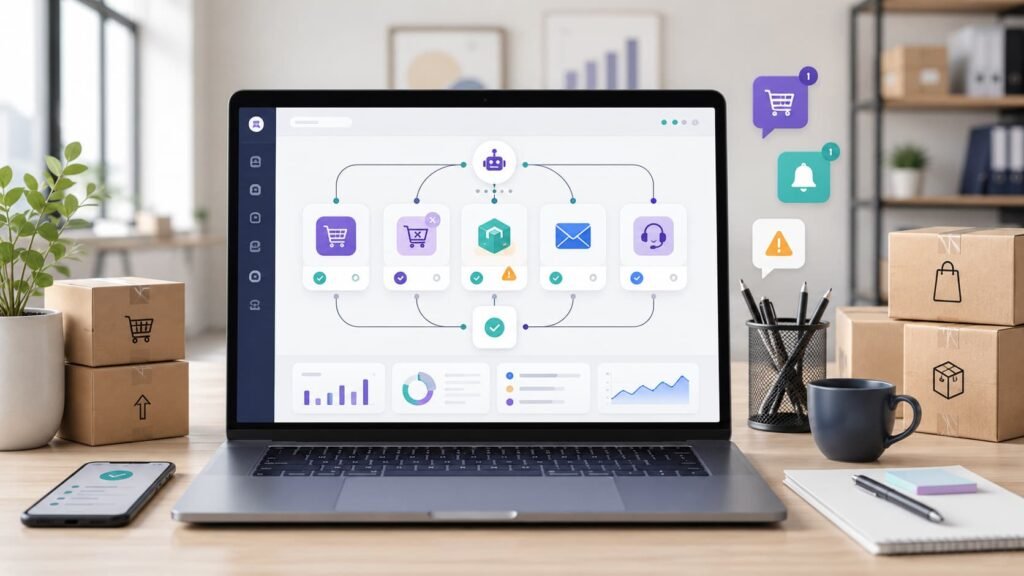
WooCommerce automation means using rules, triggers, emails, webhooks, and integrations to handle repetitive store tasks without waiting for someone to do them manually. A good workflow might recover an abandoned cart, notify your team about a high-value order, send a review request after delivery, or create a support task when a refund comes in.
The goal is not to put your store on autopilot and stop paying attention. The goal is to remove the work that should not require attention in the first place.
For most WooCommerce stores, the best automation opportunities are not flashy. They are the small operational moments that happen over and over: a customer leaves checkout, a payment fails, stock runs low, an order needs follow-up, or a repeat buyer deserves a more personal offer. Automating those moments gives your team more time for merchandising, customer service, and growth.
What WooCommerce automation actually means
WooCommerce automation is the process of turning store events into predefined actions.
In practice, most workflows follow a simple pattern:
- Trigger: Something happens, such as an order being placed, a cart being abandoned, or a product dropping below a stock threshold.
- Condition: The workflow checks whether the event meets certain rules, such as order value, customer role, product category, location, or subscription status.
- Action: WooCommerce, a plugin, or a connected tool does something automatically, such as sending an email, changing an order status, creating a coupon, updating a CRM, or notifying a team member.
- Delay: Some workflows wait before acting, such as sending a review request seven days after fulfillment.
- Measurement: The store owner tracks whether the workflow actually helped.
WooCommerce supports automation in several ways. Store owners can use built-in order statuses and transactional emails, dedicated automation extensions such as AutomateWoo, integration tools, custom code, the WooCommerce REST API, or webhooks. WooCommerce’s own webhook documentation explains that webhooks can send event notifications to a URL when orders, products, coupons, customers, purchases, and other events change: https://woocommerce.com/document/webhooks/
That flexibility is useful, but it also creates a trap. If every team member starts adding automations without a shared plan, the store becomes harder to debug. Start with workflows that save time, reduce missed follow-ups, or directly improve revenue.
What can you automate in WooCommerce?
You can automate customer communication, order management, abandoned cart recovery, inventory alerts, review requests, segmentation, coupons, subscription reminders, failed payment recovery, support tasks, fulfillment notifications, and reporting.
Here are the most common areas:
| Workflow area | What to automate | Why it matters |
|---|---|---|
| Cart recovery | Reminder emails, coupon timing, cart links | Recovers revenue from shoppers who almost bought |
| Orders | Status changes, internal alerts, fulfillment handoff | Reduces manual admin and missed steps |
| Customers | Tags, segments, VIP rules, win-back flows | Makes marketing more relevant |
| Inventory | Low-stock alerts, reorder tasks, supplier notifications | Prevents avoidable stockouts |
| Subscriptions | Renewal reminders, failed payment emails, churn alerts | Protects recurring revenue |
| Support | Refund triage, high-risk order flags, help desk tickets | Speeds up response time |
| Analytics | Daily summaries, campaign logs, exception reports | Keeps operators focused on the right issues |
The best starting point is usually a workflow where the trigger is clear and the action is low risk. For example, a low-stock alert is safer than automatically canceling orders. A review request is safer than applying discounts to every repeat customer.
Before you automate: pick the right workflow structure
Before turning on a WooCommerce automation, write it down in one sentence:
When [trigger] happens, if [condition] is true, then [action] should happen after [delay].
For example:
When a first-time customer completes an order, if the order contains a skincare product, send a usage guide two days after fulfillment.
That sentence protects you from vague automation. It also makes the workflow easier to test.
Use this structure:
| Field | Example |
|---|---|
| Trigger | Order completed |
| Condition | Customer has exactly one order |
| Delay | Two days after completion |
| Action | Send product education email |
| Owner | Ecommerce manager |
| Success metric | Repeat purchase rate or support ticket reduction |
| Failure check | Email not sent for refunded or canceled orders |
If you cannot name the trigger, condition, action, owner, and metric, the workflow is probably not ready.
12 WooCommerce workflow automation examples
1. Abandoned cart recovery
Trigger: A shopper adds products to cart or starts checkout but does not complete the order.
Condition: The cart contains products above a minimum value and the shopper has provided an email address.
Action: Send a sequence of cart recovery emails.
Delay: First reminder after 1-3 hours, second after 24 hours, final reminder after 48-72 hours.
Metric: Recovered cart revenue and unsubscribe rate.
Abandoned cart automation is often the first workflow stores set up because the commercial value is easy to see. The mistake is sending the same blunt coupon email to everyone.
A better workflow separates shoppers by cart value and customer type:
- First-time visitor with a low-value cart: send a helpful reminder and answer common buying objections.
- Returning customer: remind them what they left behind and highlight account benefits.
- High-value cart: notify the team if the cart contains premium products or B2B quantities.
- Discount-sensitive cart: offer an incentive only after the first reminder fails.
The first email should usually be service-oriented, not desperate. Mention the product, restore the cart, and make the next step obvious. Save discounts for later in the sequence so you do not train regular buyers to abandon carts on purpose.
2. New customer welcome and first-purchase follow-up
Trigger: A customer places their first order.
Condition: Customer order count equals one.
Action: Send a welcome email or short onboarding sequence.
Delay: Immediately after purchase, then again after fulfillment.
Metric: Second purchase rate.
A first purchase is more than a transaction. It is the moment a shopper decides whether your store feels trustworthy.
An effective new customer workflow can include:
- A thank-you email that confirms what happens next.
- A brand introduction that explains your product standards, shipping expectations, or support channels.
- A product-specific usage guide after delivery.
- A second-purchase recommendation based on the category they bought.
This workflow works especially well for products that require education: supplements, skincare, specialty food, digital products, equipment, courses, or products with sizing and setup considerations.
Keep the sequence useful. If every message is just another promotion, customers will tune it out.
3. Post-purchase product education
Trigger: Order status changes to completed or fulfilled.
Condition: Order includes a specific product or product category.
Action: Send educational content, care instructions, setup steps, or usage tips.
Delay: Based on the product experience.
Metric: Support ticket volume, refund rate, repeat purchase rate.
Post-purchase education is one of the most underrated WooCommerce automation examples because it can reduce refunds and improve customer satisfaction without offering discounts.
Examples:
- For apparel: send sizing care instructions and return window reminders.
- For coffee: send brewing recipes matched to the roast.
- For software or digital downloads: send setup instructions and login guidance.
- For fitness products: send a simple starter routine.
- For replacement parts: send installation warnings and compatibility checks.
The timing matters. Do not send “How to use your product” before the customer receives it. For physical products, connect the workflow to fulfillment status when possible. If that is not available, use a conservative delay based on normal delivery time.
4. Review request after delivery
Trigger: Order marked completed or delivered.
Condition: Customer has not requested a refund and the product is review-eligible.
Action: Send a review request.
Delay: 7-14 days after delivery, depending on product usage time.
Metric: Review rate and average rating.
Review requests perform better when they are timed around the customer actually having a product experience.
For fast-use products, a review request after a week may be enough. For products that need more time, such as supplements, furniture, equipment, or courses, wait longer. Asking too early creates weak reviews or no review at all.
You can make the workflow more thoughtful by routing different scenarios:
- No refund or complaint: send a public review request.
- Recent support ticket: wait or send a satisfaction check first.
- High-value customer: send a more personal review request from the founder or customer success team.
Avoid offering rewards in ways that could bias reviews. If you use incentives, make the terms clear and do not require a positive rating.
5. VIP customer tagging and rewards
Trigger: Customer reaches a spend threshold, order count threshold, or product-category milestone.
Condition: Customer is not already tagged as VIP.
Action: Add a VIP tag, send a reward, notify the team, or move the customer into a loyalty segment.
Delay: Immediately after qualifying order completion.
Metric: Repeat purchase rate, average order value, customer lifetime value.
VIP automation helps you treat your best customers differently without manually checking order history.
Possible VIP rules:
- Lifetime spend over $500.
- Five completed orders.
- Three purchases in the same category.
- Purchase of a premium product.
- Subscription active for six months.
The reward does not always need to be a discount. It can be early access, free samples, a private product drop, faster support, or a handwritten note trigger for fulfillment.
This workflow is most valuable when your team can see the VIP status in the tools they already use, such as the CRM, email platform, or support desk.
6. Low-stock alerts and reorder tasks
Trigger: Product stock drops below a threshold.
Condition: Product is active, reorderable, and not intentionally being discontinued.
Action: Notify the operations team or create a reorder task.
Delay: Immediately.
Metric: Stockout rate and lost sales from unavailable products.
Inventory automation protects revenue quietly. If a best-selling product goes out of stock, the damage is not limited to the lost sale. Paid campaigns may waste budget, organic traffic may land on unavailable products, and customers may buy from a competitor.
A useful low-stock workflow should include:
- Product name and SKU.
- Current stock.
- Reorder threshold.
- Supplier or purchasing note.
- Sales velocity, if available.
- Link to the product edit screen.
For stores with seasonal products, do not use the same threshold for every item. A product that sells 100 units per day needs a different alert than a slow-moving accessory.
7. Failed payment recovery
Trigger: Payment fails or subscription renewal fails.
Condition: Order or subscription is still recoverable.
Action: Send a payment update email and notify the account owner for high-value customers.
Delay: Immediately, then follow up over several days.
Metric: Recovered payments and churn rate.
Failed payment automation is essential for stores with subscriptions, memberships, digital products, or payment plans.
The first message should be clear and calm. Tell the customer what happened, how to update payment details, and whether access or shipment is affected. Do not make it sound like a moral failure. Cards expire, banks decline legitimate transactions, and customers miss emails.
For high-value subscriptions, add an internal alert so a real person can intervene. A quick support message can save an account that an automated email would lose.
8. Subscription renewal reminders
Trigger: Subscription renewal date is approaching.
Condition: Subscription is active.
Action: Send a reminder with renewal date, price, product details, and account link.
Delay: 7-14 days before renewal, with timing based on subscription type.
Metric: Renewal rate, refund rate, and support tickets about surprise charges.
Renewal reminders are not only a compliance or courtesy tactic. They reduce avoidable support issues.
For replenishment products, the reminder can ask whether the customer needs to adjust quantity, shipping address, or timing. For digital memberships, it can summarize what the customer has access to and what is coming next.
The workflow should make changes easy. If the customer has to search for account settings, the automation may create more support work than it saves.
9. High-value order alerts
Trigger: New order placed.
Condition: Order value exceeds a set threshold, includes a high-risk product, or uses unusual shipping details.
Action: Notify the store owner, fulfillment manager, or support team.
Delay: Immediately.
Metric: Fraud prevention, fulfillment accuracy, and response time.
High-value order alerts are simple and useful. They help teams catch operational moments that deserve human attention.
Examples:
- A wholesale-size order from a first-time customer.
- A premium product order requiring white-glove handling.
- A large order with mismatched billing and shipping details.
- An order from a key account or VIP customer.
- A local pickup order that needs same-day preparation.
This does not mean every high-value order is suspicious. The point is to route important orders to the right person quickly.
10. Refund and return triage
Trigger: Refund requested, return form submitted, or order status changed to refunded.
Condition: Refund reason, product category, customer history, or order value matches a rule.
Action: Create a support ticket, tag the customer, notify product or operations, and log the reason.
Delay: Immediately.
Metric: Refund resolution time and recurring refund reasons.
Refund automation should do more than send a confirmation email. It should help your team learn why refunds happen.
Useful routing rules:
- Product damaged: notify fulfillment or warehouse.
- Wrong item received: notify operations.
- Product not as expected: tag for product page review.
- Subscription cancellation: send churn reason to retention tracking.
- High-value customer: escalate to a senior support person.
Over time, this workflow can reveal patterns. If one product creates repeated “not as expected” refunds, the product page may need better images, sizing information, compatibility notes, or expectation-setting copy.
11. Dormant customer win-back
Trigger: Customer has not ordered within a defined period.
Condition: Customer previously purchased and is subscribed to marketing emails.
Action: Send a win-back sequence with relevant recommendations or an incentive.
Delay: Based on normal purchase cycle.
Metric: Reactivation rate and revenue per recipient.
Win-back automation only works when timing matches the product.
A 45-day gap may be dormant for coffee, pet supplies, or supplements. It is not dormant for furniture, jewelry, or seasonal products. Set the trigger based on expected repurchase behavior, not a generic calendar rule.
Good win-back flows usually include:
- A reminder based on what they bought before.
- A useful recommendation or new arrival in the same category.
- A stronger incentive for customers who do not engage.
Do not send win-back campaigns to customers with recent complaints, unresolved support tickets, or refund requests. That kind of mismatch makes automation feel careless.
12. Daily operations digest
Trigger: Scheduled daily or weekly.
Condition: Store has activity worth reporting.
Action: Send a digest to the team.
Delay: Same time each day or week.
Metric: Fewer dashboard checks and faster issue detection.
Not every automation needs to touch the customer. Some of the highest-value workflows are internal.
A daily WooCommerce operations digest might include:
- New orders.
- Revenue.
- Failed payments.
- Refunds.
- Low-stock products.
- Top-selling products.
- Orders awaiting fulfillment.
- High-value orders.
- Products with unusual return activity.
This helps the team start the day with the same facts. It also reduces the habit of checking five different dashboards just to find out whether anything needs attention.
How to choose the right WooCommerce automation method
There is no single best way to automate WooCommerce. The right method depends on the workflow, risk level, technical resources, and tools already in your stack.
| Method | Best for | Watch out for |
|---|---|---|
| Built-in WooCommerce settings | Transactional emails, order statuses, basic store behavior | Limited conditional logic |
| Automation plugins | Marketing flows, customer segments, coupons, review requests | Plugin overlap and performance impact |
| Webhooks | Sending event data to external systems | Failed deliveries and debugging |
| REST API | Custom integrations and two-way data sync | Requires development support |
| Integration platforms | Connecting WooCommerce to CRM, email, sheets, help desk, or Slack | Cost, rate limits, and fragile workflows |
| Custom code | Highly specific operational rules | Maintenance burden and developer dependency |
AutomateWoo, for example, is built around workflows made of triggers, rules, and actions. Woo’s product page describes triggers as the events that run a workflow, rules as logic that limits when it runs, and actions as what happens after the workflow is triggered: https://woocommerce.com/products/automatewoo/
For technical integrations, WooCommerce webhooks are often the cleanest starting point because they can send event notifications to another system. WooCommerce also provides REST API documentation for stores that need external systems to create or manage resources programmatically, and its order management documentation notes that orders can be created through systems integrated with the REST API: https://woocommerce.com/document/managing-orders/
As a rule of thumb:
- Use built-in settings for basic store behavior.
- Use an automation plugin for marketer-managed workflows.
- Use webhooks when another system needs to react to WooCommerce events.
- Use the REST API when data needs to move in both directions.
- Use custom code only when the workflow is valuable enough to maintain.
Common WooCommerce automation mistakes
Automating a broken process
If your manual process is unclear, automation will make the confusion faster. Document the current workflow before replacing it.
Sending too many emails
Cart recovery, post-purchase education, review requests, win-back campaigns, and promotional emails can collide. Look at the full customer experience, not each workflow in isolation.
Giving coupons too early
If every abandoned cart gets an instant discount, frequent customers learn to wait. Use discounts selectively and test whether non-discount reminders recover enough orders first.
Ignoring exceptions
Automation needs exclusion rules. Do not send review requests for refunded orders, win-back offers to angry customers, or renewal reminders with outdated pricing.
Not monitoring webhook failures
WooCommerce webhook logs can help verify deliveries and troubleshoot responses from receiving servers. Build a habit of checking logs when integrations matter to operations.
Failing to assign an owner
Every automation needs someone responsible for it. Otherwise, old workflows keep running long after the offer, product, or policy changes.
Measuring activity instead of outcomes
Email sends, workflow runs, and tags created are not the end goal. Measure recovered revenue, support time saved, review volume, refund reduction, renewal rate, or repeat purchase rate.
A simple automation audit checklist
Use this checklist before turning on a new WooCommerce workflow:
- What manual task does this replace?
- What event should trigger it?
- What conditions must be true?
- Who should be excluded?
- What action should happen?
- When should it happen?
- What should happen if the workflow fails?
- Who owns it?
- How will we measure success?
- When will we review it?
Start with three workflows:
- One revenue workflow, such as abandoned cart recovery or failed payment recovery.
- One customer experience workflow, such as post-purchase education or review requests.
- One operations workflow, such as low-stock alerts or a daily digest.
That mix gives you a useful automation foundation without creating a tangled system.
FAQ
WooCommerce automation is the use of triggers, conditions, and actions to handle repetitive store tasks automatically. Common examples include abandoned cart emails, order alerts, review requests, low-stock notifications, failed payment recovery, and customer segmentation.
You can automate customer emails, order status updates, abandoned cart recovery, coupons, inventory alerts, review requests, subscription reminders, failed payment follow-ups, support tickets, CRM updates, and internal reports.
WooCommerce webhooks send event notifications to a URL when specific store events happen, such as order, product, coupon, customer, or purchase activity. They are useful when another system needs to react to WooCommerce events.
Not always. Basic workflows can use built-in WooCommerce settings, while more advanced workflows may need an automation plugin, webhooks, an integration platform, REST API work, or custom code.
Start with a workflow that has a clear trigger and measurable value. Abandoned cart recovery, low-stock alerts, review requests, failed payment recovery, and post-purchase product education are practical starting points for many stores.
Yes, if workflows are poorly timed, irrelevant, or too aggressive. Avoid sending too many emails, offering discounts too early, or contacting customers after refunds, complaints, or unresolved support issues.
Conclusion
WooCommerce automation works best when it is practical, measured, and connected to real store behavior. The goal is not to automate every possible action. It is to identify repetitive work that slows the team down, creates missed follow-ups, or leaves revenue on the table.
Start with a small set of workflows: recover carts, guide new customers, request reviews at the right time, catch low stock, and alert the team when important orders or payment issues need attention. Once those are working, expand into segmentation, win-back campaigns, subscription retention, and deeper integrations.
Autopilot does not mean hands-off. It means your store handles the routine work automatically, while your team focuses on the decisions that actually need human judgment.