How to Connect WooCommerce to n8n Step by Step
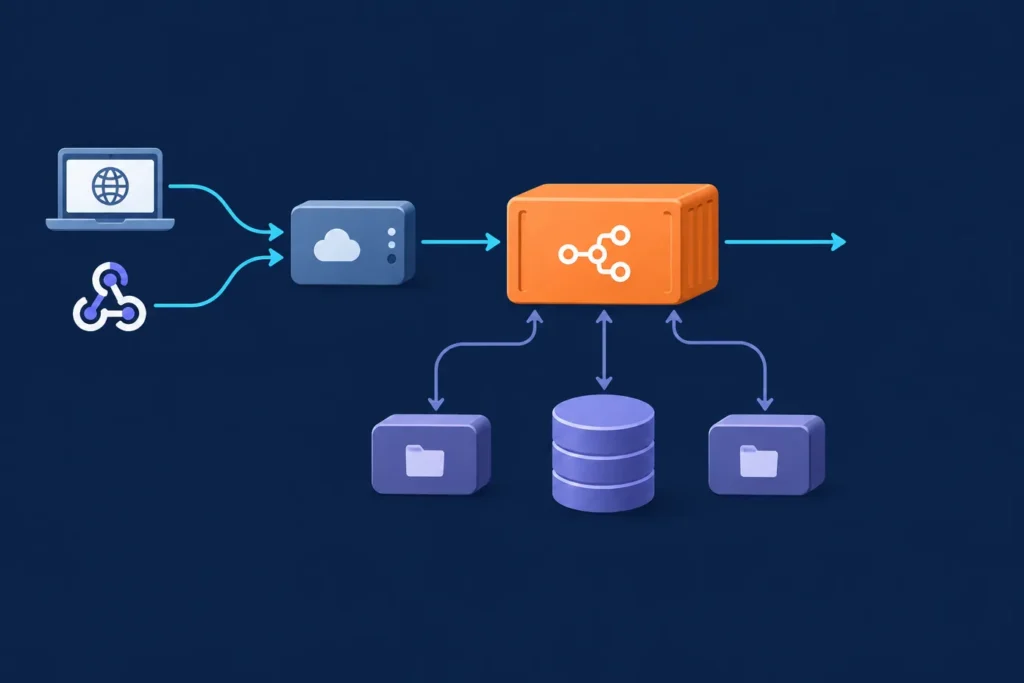
The simplest way to connect WooCommerce to n8n for a working test is to send a WooCommerce order event to an n8n Webhook trigger, inspect the order payload, and pass a small set of fields to a safe next step such as an internal log or formatting node.
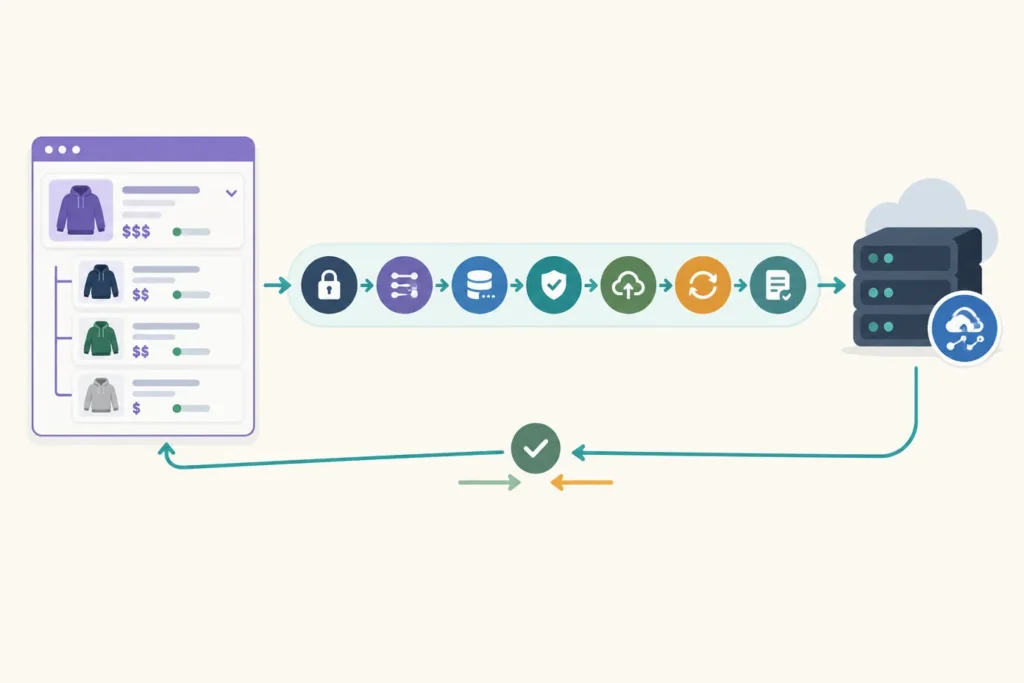
The finished path looks like this:
WooCommerce order event → n8n Webhook trigger → inspect or format order data → safe downstream action
This guide uses that webhook path as the main example because WooCommerce pushes new events into n8n as they happen. It also explains when API credentials are a better fit for reading or updating store data. Screen labels and available options can vary between WooCommerce, WordPress, n8n, installed extensions, and hosting environments, so use the labels visible in your own installation.
What you need before starting
- WooCommerce administrator or store-management access that can create webhooks and, if needed, REST API keys.
- An n8n instance where you can create workflows and credentials. This may be hosted or self-hosted.
- Your store URL and a publicly reachable HTTPS URL for n8n if WooCommerce will deliver webhooks to it.
- A controlled test order or test event. Avoid using a real customer order for initial testing.
- A decision about the data flow: webhook, API request, or a combination of both.
- A record of the WordPress, WooCommerce, n8n, relevant node, and hosting versions used in your implementation notes.
Do not assume a local n8n URL is reachable from WooCommerce. A webhook receiver must be accessible from the WooCommerce site. If n8n runs on your computer or a private network, you need an appropriate secure public route before an external store can deliver events to it.
Choose the integration method
Choose based on who should initiate the exchange.
| Method | Use it when | Authentication and testing |
|---|---|---|
| WooCommerce webhook to n8n | n8n should react when an order, customer, product, or another selected event occurs. | WooCommerce delivers a request to an n8n webhook URL. Test and production URLs must be handled separately. |
| n8n WooCommerce node or API request | n8n needs to retrieve, search, create, or update WooCommerce data on demand or on a schedule. | n8n authenticates to WooCommerce with credentials. Test by executing a read-only request first. |
| Both | A webhook starts the workflow, then n8n retrieves additional store data through the API. | Requires secure inbound webhook handling and secure API credentials. |
For a first workflow, use one method rather than combining both immediately. The webhook approach below proves that WooCommerce can send order data to n8n. After that works, add an authenticated API request only when the event payload does not contain the fields you need.
For broader planning ideas, see why automating WooCommerce tasks can save time and the n8n and WooCommerce beginner guide.
Create WooCommerce API credentials securely
You do not need API credentials for the basic inbound webhook test. You do need them when an n8n WooCommerce node or HTTP request must communicate with the WooCommerce REST API.
In the WooCommerce administration area, find the REST API key management screen and create a key for the workflow owner or a dedicated integration user. Select only the permissions the workflow needs. For example, a workflow that only reads new order details should not receive permissions intended to modify products or orders.
WooCommerce provides a consumer key and consumer secret. Treat both as passwords:
- Store them in n8n credentials, not in node names, notes, expressions, or workflow JSON committed to a repository.
- Do not include them in screenshots, support tickets, execution exports, or chat messages.
- Limit who can view or edit the credential and the workflow that uses it.
- Rotate or revoke the key when its owner changes, access is no longer needed, or exposure is suspected.
In n8n, create the relevant WooCommerce or HTTP authentication credential using the current labels shown by your n8n version. Enter the store base URL and the key pair in the credential rather than hard-coding secrets in a node. Before building write actions, verify the store URL, HTTPS configuration, credentials, and selected permission level with a harmless read operation.
Configure an n8n webhook workflow for new orders
Create a new n8n workflow and add a Webhook trigger node. Configure it to accept the request method WooCommerce will send, then save the workflow. n8n normally provides separate test and production webhook URLs.
- Test URL: Use this while the webhook node is listening in test mode. It is for an interactive test run.
- Production URL: Use this for an activated workflow. WooCommerce should send normal live events here after testing succeeds.
Copy the appropriate URL exactly. In WooCommerce, open the webhook configuration area, add a webhook, select the order-related topic you want to test, and paste the n8n delivery URL. Save the webhook. Use the production URL only after the workflow is activated; using a test URL for a live integration is a common reason events appear to stop arriving.
For the first pass, choose a safe topic and safe outcome. A new-order event that only displays or formats incoming data is safer than a workflow that changes order status, sends customer messages, or starts fulfillment.
Add a compact order-data step
After the Webhook node, add an Edit Fields, Set, Code, or equivalent transformation node. Its purpose is to create a smaller internal object for later nodes. The exact source paths depend on the payload received by your store, so inspect a real test execution before finalizing expressions.
A useful internal structure might contain:
{
"order_id": "[map the incoming order identifier]",
"status": "[map the order status]",
"customer_name": "[map only if present and needed]",
"total": "[map the order total]",
"currency": "[map the currency]",
"item_count": "[derive from line items if needed]"
}This is a mapping example, not a fixed payload schema. Order events may differ by event type, permissions, installed extensions, checkout fields, and store settings. Check whether values exist before using them. Avoid forwarding billing addresses, email addresses, phone numbers, and full line-item data unless a downstream process genuinely requires them.
At this stage, use a harmless next node: retain the compact object for inspection, write it to an approved internal destination, or prepare a notification without sending it. Once the fields are correct, you can adapt the pattern for fulfillment or operational follow-up. The order fulfillment automation guide is a useful next step when you are ready to design that process.
Test the connection end to end
- Put the n8n Webhook node into its test-listening mode and copy its test URL into the WooCommerce webhook only for this controlled test.
- Create a test order, or use a controlled event that matches the webhook topic.
- Open the n8n execution and confirm that the Webhook node received input.
- Inspect the incoming request body and locate the order identifier, status, totals, customer fields, and line items that are present.
- Check that the transformation node produces the expected compact object and that the next node receives it.
- Review the WooCommerce webhook delivery record or logs for the delivery outcome and response information.
- Replace the test URL with the production URL, activate the n8n workflow, and run one controlled production-path test.
A successful test is observable: n8n shows a completed execution or a received request, the webhook node contains an order payload, the order identifier is visible where expected, and the next node receives the mapped fields. If you use an API request instead, success means the n8n execution shows the expected WooCommerce response and your selected order data is available to subsequent nodes.
Repeated tests can create duplicate events. Do not assume retries will never occur, either. Before adding a consequential action, use the order identifier as an idempotency key: record that an order has been handled, then skip or safely update repeat events according to your business rule. Also ensure that you do not have both a test listener and an activated production workflow processing the same live webhook.
Reusable verification checklist
- The correct n8n URL is configured for the current test or production state.
- The workflow is active before relying on the production URL.
- The incoming payload contains the expected order identifier and event context.
- The transform handles optional or missing fields safely.
- The downstream action is reversible or disabled during initial tests.
- Delivery records and n8n execution details agree on the result.
Secure and maintain the integration
A difficult-to-guess webhook URL is useful, but it is not complete authentication. Treat the endpoint as sensitive and add validation appropriate to your deployment. Use the webhook verification or signing controls available in your WooCommerce and n8n setup where supported, and reject requests that do not meet your expected validation rules.
Use HTTPS for public webhook delivery and protect the n8n deployment itself. Restrict access to workflow editing, credential management, execution history, and any destination that receives customer information. Debug output is especially easy to overshare: redact data in screenshots and do not send full order payloads to broad chat channels.
Document the workflow purpose, event source, credential owner, required permissions, webhook URL location, duplicate-handling rule, and key rotation or recovery procedure. That record makes an integration easier to audit and repair later.
Troubleshoot common connection problems
| Symptom | What to check |
|---|---|
| Authentication fails for an API request | Verify the store URL, consumer key, secret, selected permissions, and credential configuration. Check whether a proxy, security plugin, or server layer alters or blocks the request. |
| 404 or incorrect API operation | Check the selected n8n resource or operation, the API path expected by your installation, REST API availability, and whether WordPress is installed in a subdirectory. |
| Webhook is not received | Confirm that WooCommerce uses the production URL for an active workflow, that n8n is publicly reachable over HTTPS, and that the webhook topic matches the test event. Review the WooCommerce delivery status and n8n execution list. |
| Order data is empty or incomplete | Inspect the raw payload before mapping. Check the event type, API permissions, selected resource, extensions, and whether the test order contains the expected values. |
| Timeouts or duplicate executions | Review server and proxy limits, webhook retry behavior, response handling, and idempotency logic. Make sure test and production listeners are not both processing live requests. |
Use evidence rather than guessing: compare the WooCommerce delivery record, response information, n8n execution status, raw node input, and transformed node output. That sequence usually shows whether the failure occurred before delivery, at the webhook trigger, or in a later mapping step.
Useful next workflows and next steps
Once the basic connection is stable, extend it one reversible step at a time. Examples include preparing an internal order notification, synchronizing selected fields with a CRM, creating a fulfillment task, or building a reporting record. Add explicit duplicate handling and data-minimization rules before connecting customer-facing or irreversible actions.
For workflow ideas beyond the initial test, explore actionable WooCommerce workflow automation examples. Keep the same adaptation checklist for every new event: choose the trigger, inspect a real payload, map only required fields, test safely, activate deliberately, and review logs after deployment.