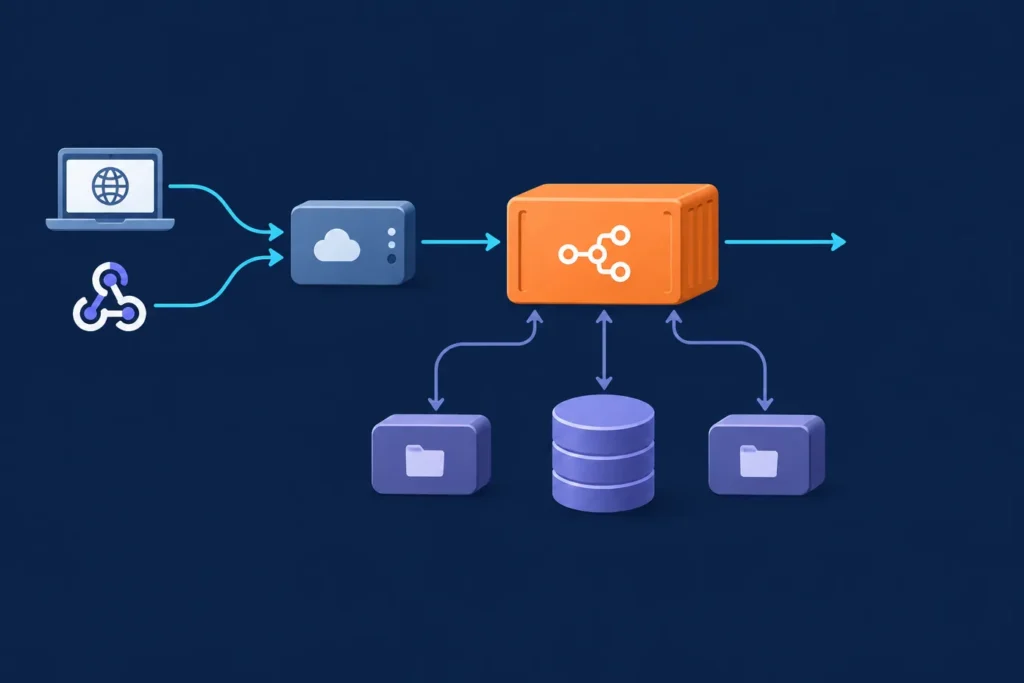
Self-hosting n8n with Docker Compose gives you control over where the editor, workflow data, credentials, and webhook endpoints run. A practical production-oriented starting point is an n8n container backed by PostgreSQL, with Docker volumes for persistent data and a reverse proxy handling public HTTPS access.
The configuration below is intentionally explicit rather than minimal. Copy it into a new project, replace the example values, validate it, and then start the stack. Image tags, environment variable names, and n8n behavior can change between releases, so review the n8n documentation and the image release notes before publishing this configuration or upgrading an existing instance.
What You Will Build
You will create a small Compose project containing:
- n8n, which serves the editor, executes workflows, and receives webhook requests.
- PostgreSQL, which stores application data such as workflows, users, credentials metadata, and execution information.
- Persistent Docker volumes, so recreating containers does not automatically erase application or database data.
For an internet-facing setup, the intended request path is:
Browser or external webhook service
  → https://automation.example.com
  → reverse proxy and TLS certificate
  → 127.0.0.1:5678 on the host
  → n8n container
  → PostgreSQL container and persistent volumes
This is a deployment and operations guide, not a guide to building workflows. If you are new to the automation platform itself, start with What Is n8n and How It Works with WooCommerce: Complete Beginner Guide after the installation is running.
Prerequisites and Deployment Decisions
You need a machine where you can run Docker commands and retain data between reboots. This can be a local computer for evaluation or a server for persistent use. Have the following ready:
- Shell access to the host, ideally through a non-root account that can run Docker.
- Docker Engine and the Docker Compose plugin. Confirm availability with
docker --versionanddocker compose version. - A domain name and DNS control for public HTTPS and webhooks, or a host IP address for private/local access.
- Ports and firewall rules appropriate to the chosen access model.
- Enough disk space for PostgreSQL data, n8n binary data, Docker images, and backups.
- Basic familiarity with editing text files, reading logs, and protecting secrets.
Test setup versus internet-facing setup
For a local test, binding n8n to 127.0.0.1:5678 lets you open it from the same machine without exposing the editor to the network. You can temporarily use HTTP and a localhost address while learning.
For an internet-facing instance, do not treat a public port mapping as the complete access plan. Use a domain, terminate TLS at a properly configured reverse proxy, restrict server access where appropriate, and set n8n’s public URL variables to the HTTPS URL users and webhook providers actually reach. A webhook provider cannot call a private address such as localhost, an internal Docker hostname, or a hostname that does not resolve publicly.
Decisions to make before writing files
- Database: this guide uses PostgreSQL. A simple local setup can use n8n’s default storage approach, but a separate database makes the persistence boundary clearer for a maintained deployment.
- Storage: named Docker volumes are easy to begin with. Host bind mounts can be useful when your backup process is designed around known host paths.
- Proxy: decide whether n8n is local-only, private behind a VPN, or public behind a reverse proxy.
- TLS: decide which proxy obtains and renews certificates. n8n should know that its public protocol is HTTPS even if the proxy connects to n8n over local HTTP.
- Backups: decide where database dumps, volume data, and the encryption key will be stored before workflows become important.
Before continuing, verify that port 5678 is free on the loopback interface, ports 80 and 443 are available if the same host will run a proxy, DNS can point to the host, the Docker daemon is running, and your host has a backup destination separate from the server.
Create the Docker Compose Project
Create a dedicated directory instead of placing the deployment among unrelated projects:
mkdir -p ~/n8n-compose
cd ~/n8n-compose
touch compose.yaml .env
chmod 600 .env
The project starts with two files:
n8n-compose/
├── compose.yaml
└── .env
Docker creates the named volumes declared in the Compose file. You do not need to create their directories manually.
Save this as compose.yaml. The n8n image reference is deliberately pinned to a major line rather than using an unqualified latest tag. Confirm that the selected tag is appropriate for your n8n release and compatibility requirements before using it.
services:
  postgres:
    image: postgres:16
    restart: unless-stopped
    env_file:
      - .env
    volumes:
      - postgres_data:/var/lib/postgresql/data
    healthcheck:
      test: ["CMD-SHELL", "pg_isready -U $$POSTGRES_USER -d $$POSTGRES_DB"]
      interval: 10s
      timeout: 5s
      retries: 5

  n8n:
    image: n8nio/n8n:1
    restart: unless-stopped
    env_file:
      - .env
    ports:
      - "127.0.0.1:5678:5678"
    depends_on:
      postgres:
        condition: service_healthy
    volumes:
      - n8n_data:/home/node/.n8n

volumes:
  postgres_data:
  n8n_data:
Why each section matters
postgres is the database service name. Docker’s internal network lets n8n reach it at the hostname postgres; there is no need to publish PostgreSQL’s port to the host for this two-container setup.
restart: unless-stopped asks Docker to restart the service after a daemon or host restart unless you explicitly stopped it. It does not fix configuration errors, exhausted disk space, or a database that cannot start.
The database health check gives Compose a useful readiness signal. The depends_on condition means n8n waits for PostgreSQL to report ready before Compose starts n8n. n8n must still be able to recover from temporary database failures after startup; dependency order is not a substitute for logs and monitoring.
The port mapping exposes n8n only on the server’s loopback address. A reverse proxy on the same host can forward requests to it, while remote clients cannot connect directly to port 5678. For a local test where you need another device on your LAN to connect, use a firewall-conscious mapping such as 5678:5678 only if that exposure is intentional. Do not also publish the port when a local reverse proxy is the only required entry point.
Configure Environment Variables
Put environment-specific values and secrets in .env, not directly in the Compose file. This does not make the file safe by itself: it must be excluded from Git, readable only by appropriate host users, and included in your secret-handling and recovery plan.
Use this as a template. Replace the example host and generated values before starting containers.
# PostgreSQL initialization and n8n database connection
POSTGRES_USER=n8n
POSTGRES_PASSWORD=replace-with-a-long-unique-database-password
POSTGRES_DB=n8n

DB_TYPE=postgresdb
DB_POSTGRESDB_HOST=postgres
DB_POSTGRESDB_PORT=5432
DB_POSTGRESDB_DATABASE=n8n
DB_POSTGRESDB_USER=n8n
DB_POSTGRESDB_PASSWORD=replace-with-the-same-database-password

# Public n8n address
N8N_HOST=automation.example.com
N8N_PORT=5678
N8N_PROTOCOL=https
N8N_EDITOR_BASE_URL=https://automation.example.com
WEBHOOK_URL=https://automation.example.com/

# Keep this exact value for the lifetime of data encrypted with it
N8N_ENCRYPTION_KEY=replace-with-a-long-random-secret-value

# Set to your operational timezone, for example Europe/London
GENERIC_TIMEZONE=Etc/UTC
TZ=Etc/UTC

# One proxy layer sits in front of n8n in this example
N8N_PROXY_HOPS=1
Public address settings
N8N_HOST, N8N_PROTOCOL, N8N_EDITOR_BASE_URL, and WEBHOOK_URL describe the URL n8n should present to users and external services. With a reverse proxy, this is normally the public HTTPS domain, not postgres, a container name, a private IP, or 127.0.0.1.
N8N_PORT=5678 is the port on which n8n listens inside its container. It does not mean that browsers should use :5678 when the reverse proxy publishes standard HTTPS on port 443. This distinction prevents a common problem: an editor that loads through the domain but creates webhook URLs pointing to an inaccessible internal address.
For a local HTTP-only test, the public variables can instead describe the exact local address you open, such as http://localhost:5678. Do not copy those local values into a deployment expected to receive public webhooks.
Protect the encryption key
The encryption key is not a disposable startup setting. n8n uses it to protect stored credential data. If you change or lose the key while retaining the old database, existing credentials may no longer be decryptable. Store the key in a protected secret manager or an access-controlled backup location, and restore the same key with the associated database data.
Generate secrets with a trusted local tool, rather than reusing examples from an article. For example:
openssl rand -hex 32Do not commit .env, paste it into tickets, or include it in log output. Also note that PostgreSQL initialization variables apply when its data directory is first created. Changing POSTGRES_PASSWORD later does not automatically change the password in an already initialized database.
Start n8n and Verify the Installation
First render the configuration. This catches YAML errors and shows whether Compose can resolve values. Because rendered output can reveal secrets, avoid sharing it unredacted.
docker compose configStart the project in the background:
docker compose up -dCheck status and then follow the logs:
docker compose ps
docker compose logs --follow n8n
docker compose logs --follow postgres
Expected observations are that PostgreSQL becomes healthy, the n8n container remains running instead of repeatedly restarting, and the n8n log does not show database authentication or connection failures. If this is a local setup, open http://localhost:5678. For a proxied deployment, open the public HTTPS domain.
On the first visit, complete the account-owner setup presented by n8n. Do not assume an older tutorial’s basic-auth environment variables are appropriate for the release you selected; authentication behavior and available configuration can be version-sensitive.
Perform a simple persistence check before building useful workflows:
- Create a clearly named draft workflow and save it.
- Restart the n8n container with
docker compose restart n8n. - Reload the editor and confirm the workflow is still present.
This is not a backup test, but it confirms the application can reconnect to its persistent database after a container restart. Inspect volumes with docker volume ls and docker compose exec postgres pg_isready -U n8n -d n8n if you need a direct database readiness check.
Make the Instance Reachable Safely
A reverse proxy is the usual boundary between the public internet and n8n. Its role is to accept requests for your domain, serve HTTPS, forward traffic to http://127.0.0.1:5678, and pass the original host and protocol information to n8n.
Conceptually, configure the proxy to forward the request host plus the standard forwarded protocol and client-address headers. Set N8N_PROXY_HOPS to match the number of trusted proxy layers in front of n8n. If you add a CDN, load balancer, or another proxy, revisit that value and the trust boundary rather than assuming one hop remains correct.
After proxy setup, verify all of these separately:
- The domain resolves to the intended server.
- The certificate is valid for that domain and HTTPS reaches the proxy.
- The proxy can reach n8n on the loopback address.
- The n8n editor redirects and displays the expected public URL.
- A newly created webhook shows the same public HTTPS base URL.
Use firewall rules to expose only services you intend to expose. Keep Docker and host administration access restricted, use unique credentials and secrets, and avoid placing secrets in workflow notes or source control. HTTPS reduces exposure in transit, but it does not replace account access controls, host patching, backup protection, or careful review of who can create workflows and credentials.
If your goal is store automation, the public URL matters immediately: WooCommerce and other external services need a callback address they can reach. For workflow ideas after deployment, read Why Automating WooCommerce Tasks Saves You Hours Every Week.
Persist Data and Plan Backups
Containers are replaceable; persistent data is not. In this setup, postgres_data holds the PostgreSQL data directory. n8n_data holds n8n application files and can matter for local binary-data storage and instance configuration. The exact data location and storage behavior should be checked against the n8n version and any additional configuration you enable.
A usable backup plan includes more than copying a running container. Preserve:
- A consistent PostgreSQL backup.
- The n8n data volume where applicable.
- The exact
N8N_ENCRYPTION_KEYused by the backed-up data. - The sanitized Compose configuration and the information needed to recreate the environment.
- Any proxy configuration, DNS records, and externally managed secrets needed for recovery.
For example, create a logical PostgreSQL dump from the database container and write it to a protected host directory:
mkdir -p backups
docker compose exec -T postgres \
  pg_dump -U n8n -d n8n > backups/n8n-$(date +%F).sql
Set file permissions and transfer backups to a separate protected location. A database dump alone may not include files stored in the n8n volume. Conversely, copying a volume without the matching encryption key is not a complete recovery package.
Most importantly, test restoration in an isolated environment. Restore a backup into a separate PostgreSQL instance, provide the matching encryption key, start a non-public test copy, and confirm that workflows and required credentials are available. A directory or dump that has never been restored is only an unverified backup artifact.
Update n8n Without Losing Configuration
Updating n8n changes the application image; it should not intentionally delete named volumes. However, releases can include migrations and behavior changes, so treat an update as a controlled change rather than a routine image pull.
- Record the current image reference, Compose file, environment settings, and container status.
- Review release notes and compatibility notes for the target version, especially database migrations and removed environment variables.
- Create and verify a backup that includes the database and encryption key.
- Change the n8n image tag in
compose.yamlto the chosen version. - Pull and recreate only after the review.
docker compose pull n8n
docker compose up -d --no-deps n8n
docker compose logs --follow n8n
Afterward, open the editor, inspect workflow and credential availability, and check a non-destructive webhook or test workflow. Keep the previous image reference recorded. A rollback may be as simple as returning to the old image when no incompatible persistent-data migration has occurred; after migrations, rollback can require restoring the matching backup instead. Do not delete volumes as part of normal update commands.
Troubleshooting and Next Steps
Ports, permissions, and restart loops
- Port already allocated: another process may own 5678, or a previous Compose project may still be running. Check
docker compose ps, then inspect host listeners with your operating system’s networking tools. Change the host-side port only if it fits the proxy and URL plan. - n8n exits or restarts: run
docker compose logs n8n. Missing variables, malformed values, database authentication failures, and connection errors are common starting points. - PostgreSQL is unhealthy: read
docker compose logs postgres. Confirm the database credentials match the initialized database. If this is an existing volume, remember that editing initialization variables does not rewrite users automatically. - Permission errors: check ownership and write access for any host bind mounts. Named volumes avoid many host-path ownership issues, but they still require adequate Docker disk space.
Editor works but webhooks fail
Compare the webhook URL displayed in n8n with the URL an external service can actually call. Confirm DNS, public HTTPS, firewall rules, proxy routing, and forwarded headers. Also confirm that the workflow is active when the trigger requires activation. An editor accessible through a private address does not prove external webhook reachability.
For a focused diagnostic sequence covering 404 responses and failed requests, use the n8n Webhook 404 or Not Working? Practical Troubleshooting Guide.
A practical diagnostic order
- Run
docker compose configto inspect the rendered configuration. - Run
docker compose psto identify stopped or unhealthy services. - Read logs for the affected service, starting with the first error rather than the final restart message.
- Test database readiness from inside the project.
- Test local n8n access on the host before diagnosing the public proxy.
- Test the public domain, then test the exact webhook URL from an external location where possible.
Choose Your Next Step
Once the deployment is stable, bookmark this guide alongside your configuration and update record. Use the WooCommerce introduction to plan store integrations, use the webhook troubleshooting guide when external requests fail, and explore an n8n MCP tutorial from your preferred technical reference when you are ready to build tool-connected AI workflows. Keep deployment changes, credential handling, backups, and workflow development as separate, reviewable tasks.