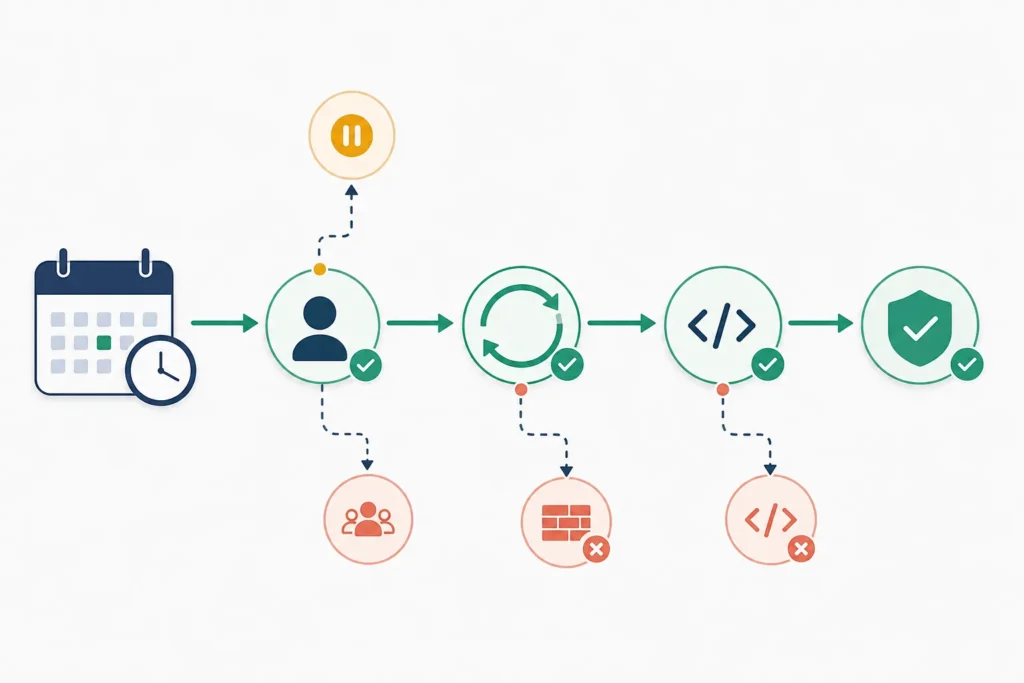
If WordPress scheduled posts, backups, emails, imports, or plugin jobs are late, start with four checks: inspect the overdue event, confirm that DISABLE_WP_CRON is not blocking processing, review Site Health and server logs for request failures, and determine whether the event’s callback is failing. These checks separate a general WP-Cron problem from one broken plugin task.
WP-Cron is normally triggered by requests to your site. That design means a quiet site may run jobs late, while a blocked internal request or an error in a callback can prevent a job from completing. Do not delete scheduled events or change wp-config.php until you record the affected hook, next-run time, and any related log errors.
Quick diagnosis: why WP-Cron is not running
- Check the symptom. Is every scheduled task late, or only one plugin’s task? A missed post and a failed integration may have different causes.
- Inspect scheduled events. Use a cron-management plugin or an administration tool supplied by your host to find overdue, missing, or repeatedly duplicated events.
- Check configuration. Look in
wp-config.phpand deployment-specific configuration forDISABLE_WP_CRON. - Review Site Health and logs. Loopback, REST, HTTP, PHP fatal-error, timeout, and memory messages are useful evidence.
- Consider traffic and workload. A low-traffic site may not receive a request when work is due. A busy site may have jobs that time out or overlap.
- Isolate the callback. If WP-Cron runs but one hook does not finish, investigate the plugin, theme, custom code, credentials, or remote service used by that hook.
A useful rule: if several unrelated hooks are overdue, investigate triggering and server access first. If a single hook is overdue or produces errors, investigate the code that registered or handles that hook.
How WP-Cron works and what counts as a failure
WordPress stores scheduled events with a hook name, a scheduled time, and, for recurring events, an interval. When a request reaches the site, WordPress checks for events that are due and attempts cron processing in a separate request. The due event then calls the function or plugin callback registered for its hook.
This is a pseudo-cron system, not a continuously running operating-system scheduler. A real server cron job runs according to a schedule set by the server. WP-Cron usually depends on ordinary web requests unless you deliberately replace that trigger with a server-side job.
Several different failures can look like “cron is broken”:
- Missed scheduling: the event was never registered, was unscheduled, or has an incorrect recurrence.
- Delayed triggering: the event is due, but no suitable request has arrived yet.
- Blocked cron request: WordPress cannot complete the internal request needed to process events.
- Failed callback: cron starts, but the event’s code encounters a fatal error, timeout, memory limit, authentication problem, or remote API failure.
Check scheduled events and missed tasks
Install or use an appropriate cron-management screen in a safe environment. Find the event connected to the visible symptom, then record its hook name, arguments, recurrence, next-run time, and source if the tool shows one. Keep this information before running, editing, or deleting anything.
Look for these patterns:
- The expected hook is missing: the responsible code may not be active, or it may have unscheduled the event.
- The event is overdue: the cron trigger may be delayed or blocked.
- Many copies of the same recurring hook exist: activation code or custom scheduling logic may be registering duplicates.
- The event runs manually but not on schedule: traffic, trigger configuration, or a server cron setup deserves attention.
- The event starts but has no expected result: inspect its callback and application logs.
Manually running an event can be a diagnostic test, not proof that the scheduled workflow is healthy. For example, a short manual run may succeed while the normal request still times out under load. Also avoid deleting an unfamiliar event: plugins may rely on its exact schedule and arguments.
Verify that WP-Cron is enabled
Search wp-config.php, environment-variable templates, host-managed configuration, and deployment files for this setting:
define('DISABLE_WP_CRON', true);When it is set to true, normal web requests will not trigger WP-Cron. This is often intentional on sites configured with a real server cron job. It is not automatically an error.
If no server-side replacement exists, re-enable normal behavior by removing that definition or changing the value to false, following your deployment process. Confirm that another environment-specific file does not restore the disabled value after deployment. Make a backup and confirm the hosting arrangement before changing production configuration.
A separate setting, ALTERNATE_WP_CRON, can change how WordPress attempts cron processing. It may be used in specific environments, but it is not a general substitute for identifying loopback, cache, authentication, or server issues.
Test loopback requests, REST access, and Site Health
Open WordPress Site Health and check for loopback or scheduled-event warnings. A loopback request is the site making an HTTP request back to itself. WP-Cron may depend on that path, so a request that is redirected, challenged, rejected, or timed out can leave events waiting.
Review the behavior of the site URL and WordPress URL, HTTPS certificate handling, DNS resolution from the server, redirects between www and non-www hosts, and any password-protection layer. Also check firewalls, web application firewalls, security plugins, maintenance mode, rate limiting, and hosting rules that may block internal requests.
Then inspect PHP and web-server error logs around the expected event time. Useful evidence includes fatal errors, exhausted memory, maximum-execution-time messages, connection failures, HTTP 401 or 403 responses, and upstream timeouts. REST restrictions can matter when a plugin’s scheduled callback uses REST endpoints, even if the core cron trigger itself is reachable.
Find plugin, theme, and callback conflicts
If only one task fails, identify which plugin, theme function, or custom code owns its hook. Check logs first; a PHP fatal error provides a more direct lead than broad deactivation. Common callback problems include unavailable credentials, invalid remote URLs, database errors, missing dependencies, and work that exceeds PHP resource limits.
Use staging where possible. Otherwise, use a controlled maintenance approach and isolate components methodically: deactivate the suspected plugin, retest the representative event, then restore it and test the next likely component. Temporarily switching to a default theme can help where theme code schedules or alters tasks. Document each change and result so that a coincidental success is not mistaken for the cause.
Automation failures often have two layers: the scheduled task may run correctly, but the outgoing delivery may fail afterward. If the affected task sends store data to another service, compare the event timing and logs with this related guide: WooCommerce Webhooks Not Working? 10 Things to Check.
Fix low-traffic and overloaded-site problems
Low traffic can delay WP-Cron because no visitor request arrives near the event’s due time. High traffic does not guarantee success either: long-running callbacks, concurrent jobs, slow remote calls, and tight PHP or database limits can cause requests to overlap or time out.
First, identify the workload. Remove obsolete schedules, correct duplicate registrations, and avoid putting large batches of work into one request where the responsible plugin or custom code supports smaller batches. Do not assume that a cron event completed just because it disappeared from an event list. Verify the actual outcome: a published post, a generated file, a sent email recorded by the mail system, or a successful integration log entry.
Replace WP-Cron with a real server cron job
A server cron job is worth considering when tasks need predictable timing, the site receives little traffic, or visitor-triggered cron processing is unsuitable for the hosting environment. The usual sequence is:
- Arrange a server-side schedule that triggers WordPress cron processing using the method supported by the host, such as a command-line PHP invocation or an HTTP request.
- Choose a frequency that fits the site’s shortest required schedule and available resources. Do not schedule overlapping runs without considering how long tasks take.
- Enable logging or capture output so failures can be reviewed.
- Only after confirming the server job works, set
DISABLE_WP_CRONtotrueto stop visitor requests from triggering duplicate processing.
The exact command, executable path, permissions, and scheduling interface vary by operating system and host, so use host documentation or support for those details. Ensure the job runs as a user that can read the WordPress files and access the required database and network services. Keep a rollback plan: remove or pause the server job and re-enable ordinary WP-Cron if the replacement cannot be verified.
Verify the fix and prevent future failures
Verify with a representative event rather than relying only on a changed setting. Note its next scheduled time, allow it to become due or run it as a controlled test, then confirm both that the event state advances and that its expected result exists. Review the relevant application, PHP, and server logs after the test.
For ongoing visibility, periodically check for overdue events, repeated error messages, duplicate schedules, and jobs that take longer than expected. After plugin, PHP, security, cache, domain, or hosting changes, retest one important scheduled workflow.
Decision path when the problem persists
- All events are overdue: check
DISABLE_WP_CRON, server cron configuration, and loopback access. - Events are late only on a quiet site: evaluate a real server cron trigger.
- One event fails: inspect the owning callback, plugin settings, and logs.
- Events run but results are absent: investigate the task’s downstream API, email, file, database, or webhook step.
- Failures began after a change: compare plugins, theme code, PHP configuration, firewall rules, and hosting changes against the last known working state.
Next step: Bookmark this checklist for the next missed task, then explore related WordPress troubleshooting and automation guides. For store integrations, the WooCommerce webhook troubleshooting guide above is a useful follow-up.