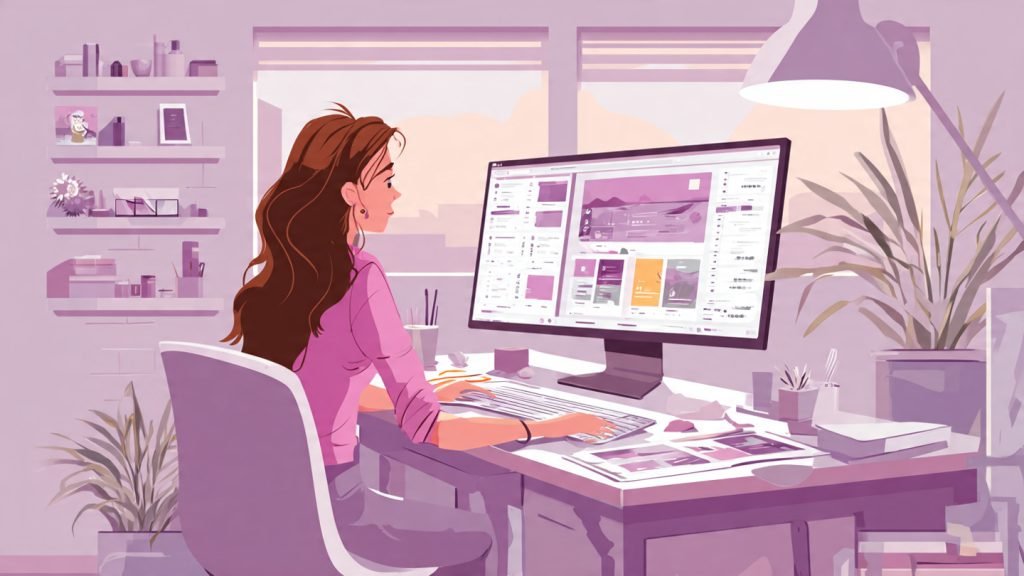
If you use a classic WordPress theme, the Customizer is still one of the fastest ways to make visual changes without touching template files. It lets you adjust theme settings and preview the result before publishing anything live.
The short version is simple: the WordPress Customizer is built for safe, front-end editing. You can change your site title, logo, menus, widgets, homepage settings, and custom CSS while seeing the update in real time.
That said, there is one important nuance. In newer block themes, the Site Editor has replaced much of what the Customizer used to handle. So if you are working with WordPress Customizer today, you are usually working on a classic theme or a hybrid setup.
What is the WordPress Customizer?
The WordPress Customizer is a built-in interface that lets you edit parts of your site with a live preview. Instead of changing settings blindly and refreshing multiple tabs, you can make updates and see how they look before you publish them.
For site owners, that means less guesswork. For developers, it creates a structured way to expose theme options without building a separate settings page for every small change.
In practical terms, the Customizer often controls:
- Site identity, including title, tagline, and logo
- Colors and background settings
- Header and footer options, depending on the theme
- Menus
- Widgets
- Homepage settings
- Additional CSS
Not every theme includes the same options. The Customizer is partly powered by WordPress core and partly by the active theme. That is why one site may have a few simple settings while another has a much larger panel layout.
Does the WordPress Customizer still matter?
Yes, but mostly for classic themes.
If your site runs on a traditional theme, the Customizer is still relevant because many theme options live there. It is often the main control center for non-technical edits.
If your site runs on a block theme, you may see fewer Customizer options or none at all. In that case, WordPress expects you to use the Site Editor for templates, global styles, and layout changes.
This distinction matters because many tutorials skip it. Readers then assume the Customizer is broken when the real issue is that their theme no longer relies on it.
How to access the WordPress Customizer
In most classic-theme installs, go to:
WordPress Dashboard > Appearance > CustomizeYou can also access it from the front-end admin bar on many sites by clicking Customize while logged in.
If you do not see the Customizer, one of these is usually true:
- Your theme is a full block theme and uses the Site Editor instead
- Your user role does not have permission to manage theme settings
- A plugin or theme conflict is changing the admin experience
Main sections inside the Customizer
The exact layout depends on your theme, but these sections are the most common.
Site Identity
This section usually controls:
- Site title
- Tagline
- Logo
- Site icon or favicon
For a small business or blog, this is often the first place to start. It handles the basic branding elements that appear across the site.
Colors and Theme Design Options
Many themes add controls for brand colors, link colors, button styles, typography, or layout width. Some lightweight themes keep this minimal. Premium themes usually offer more design-level control.
The useful rule here is not to over-customize. A theme with too many visual tweaks can become inconsistent fast. Start with brand-level changes that improve recognition and readability.
Menus
The Menus panel lets you create or assign navigation menus and preview where they appear. This is especially helpful when a theme supports multiple menu locations such as:
- Primary navigation
- Footer menu
- Mobile menu
Because the preview updates immediately, it is easier to catch broken structure or awkward labels before publishing.
Widgets
In classic themes, widgets still matter for sidebars, footers, and other widget areas. Inside the Customizer, you can add, remove, or reorder them while seeing how the page layout responds.
This is much easier than editing widgets in isolation, especially on content-heavy sites where spacing and hierarchy matter.
Homepage Settings
Here you can decide whether your homepage shows:
- Your latest blog posts
- A static page
This is one of the most important settings on a business site. A static homepage creates a stronger branded experience, while a latest-posts homepage is more common for a simple blog or publication.
Additional CSS
This is one of the most practical parts of the Customizer. The Additional CSS panel lets you make small styling changes without editing theme files directly.
It is useful for tasks like:
- Adjusting spacing
- Changing font sizes
- Hiding minor elements
- Fixing mobile display issues
For example, if a button needs more top margin or a heading looks too large on mobile, Additional CSS is often the quickest clean fix.
How to work with the Customizer effectively
A lot of WordPress users treat the Customizer like a place to click around and hope for the best. A better workflow is more deliberate.
1. Start with high-impact settings
Begin with the elements visitors notice first:
- Logo
- Site title and tagline
- Homepage display
- Main navigation
- Core brand colors
These changes usually improve the site more than minor decorative edits.
2. Use the live preview before publishing
The preview is the main advantage of the Customizer. Use it. Check desktop and mobile views where possible, and look at a few different page types before you publish a design change.
3. Make one category of change at a time
Do not update menus, homepage layout, widgets, and CSS all at once. Group related edits so it is easier to spot what caused a problem.
4. Avoid using the Customizer for everything
The Customizer is useful, but it is not the right tool for every job. If you need structural theme changes, custom templates, or reusable design systems, you are usually better off with a child theme, custom development, or the Site Editor.
Common WordPress Customizer tasks
Changing your logo and site icon
Open Site Identity, upload the logo, and crop it if needed. Then add a site icon so browser tabs and bookmarks display your brand correctly.
Setting a static homepage
Open Homepage Settings, choose A static page, then assign your homepage and posts page. This is a simple change, but it shapes the whole site experience.
Updating navigation menus
Open Menus, create or edit a menu, assign its location, then preview it. Keep labels short and obvious. Navigation works best when visitors understand it at a glance.
Editing widgets
Open Widgets, select the sidebar or footer area, then add or remove blocks or legacy widgets. Focus on utility. A cluttered sidebar usually hurts usability more than it helps.
Adding custom CSS
Open Additional CSS and add only the styles you actually need. Keep the changes small and documented. If the CSS grows into a long patch file, that is usually a sign the site needs a cleaner theme-level solution.
Common problems when working with WordPress Customizer
The Customizer is missing
This often happens because the site uses a block theme. Check whether Appearance > Editor is present. If it is, the Site Editor is likely the correct tool.
Changes are not showing on the front end
This is usually caused by caching. Clear:
- Browser cache
- Caching plugin cache
- CDN cache if the site uses one
If the issue remains, test with plugins temporarily disabled on a staging site.
The preview looks broken
A theme or plugin conflict may be affecting the preview frame. Switch to a default theme on staging and test again. If the problem disappears, you have narrowed down the source.
Theme options are too limited
That is often a theme limitation, not a WordPress limitation. Some themes expose very little through the Customizer. In that case, consider a more flexible theme or a child theme with custom development.
WordPress Customizer tips for developers
If you are extending the Customizer in a theme, the core concept is straightforward: you register panels, sections, settings, and controls, then map those settings to output in the theme.
Developers commonly hook into customize_register to add:
- New sections for grouped theme options
- Settings with sanitization callbacks
- Controls for text, checkboxes, colors, images, and selects
The best developer implementations keep settings limited, useful, and predictable. The Customizer becomes hard to use when a theme dumps dozens of disconnected options into it.
Good Customizer development usually follows three rules:
- Expose only settings users will actually change
- Sanitize every saved value
- Keep design controls tied to clear front-end outcomes
WordPress Customizer vs Site Editor
If you are deciding between the two, use this rule of thumb:
- Use the Customizer for classic themes and straightforward visual settings
- Use the Site Editor for block themes, templates, layout systems, and global style management
The biggest mistake is treating them as interchangeable. They belong to different WordPress theme models.
Final thoughts
Working with WordPress Customizer is still worth learning because many sites continue to run classic themes, and the Customizer remains the simplest way to make safe visual updates without editing code directly.
For beginners, it is the easiest place to handle branding, menus, widgets, homepage settings, and small CSS tweaks. For developers, it is still a useful framework for exposing theme options in a structured way.
If your site uses a block theme, spend more time learning the Site Editor. If it uses a classic theme, the Customizer is still one of the most practical tools in the WordPress admin.
FAQ
The WordPress Customizer is used to edit theme-related settings with a live preview, including site identity, menus, widgets, homepage settings, and Additional CSS.
You may be using a block theme, which relies on the Site Editor instead of the classic Customizer. Permissions and theme or plugin conflicts can also hide it.
Yes. Most classic-theme installs include an Additional CSS section where you can add small styling changes without editing theme files directly.
It is mainly relevant for classic themes. Block themes generally move customization into the Site Editor.