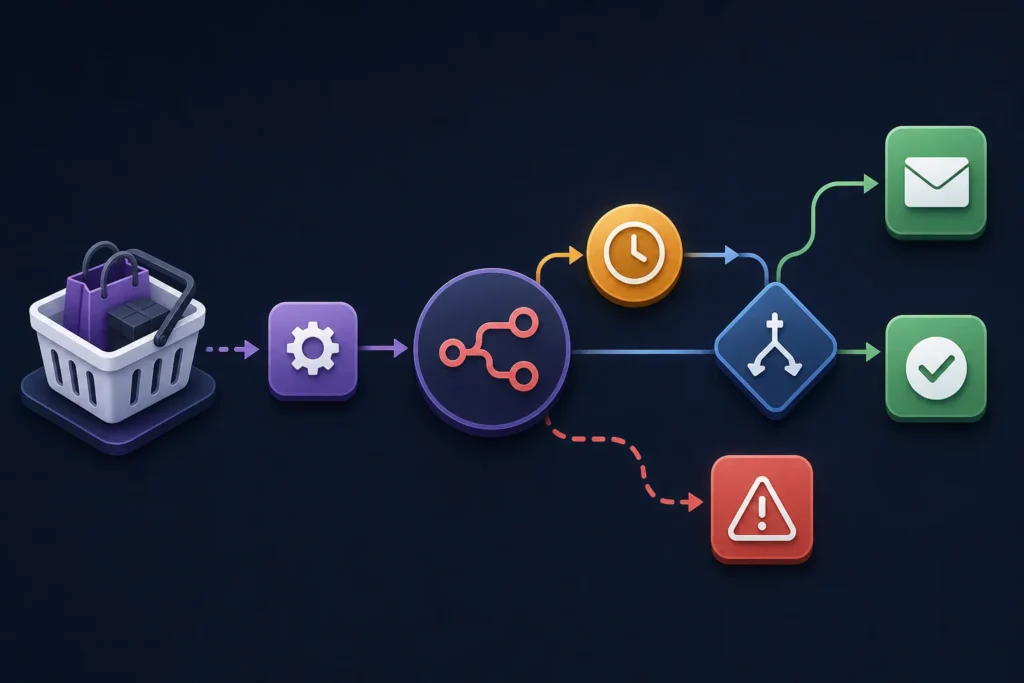
You can automate WooCommerce abandoned-cart follow-ups with n8n by sending cart activity into a workflow, waiting for a defined period, checking whether checkout became an order, and sending a permitted reminder only when it did not. The important reliability controls are a stable cart identifier, an order-status recheck immediately before each message, suppression rules, and a stored sent status.
WooCommerce does not expose one universal native “cart abandoned” event for every store configuration. In practice, you need a way to capture cart or checkout activity first: a cart-tracking plugin, a custom endpoint, a checkout-related integration, or scheduled polling of a data source that records carts. A standard WooCommerce order webhook is useful after an order exists, but it cannot by itself report a guest cart that never creates an order.
The abandoned-cart workflow at a glance
A practical workflow has this shape:
- Cart activity arrives: a webhook, plugin callback, custom endpoint, or scheduled source sends a cart record to n8n.
- Normalize and validate: map the incoming payload into consistent fields and reject incomplete or ineligible records.
- Deduplicate: check a data store for the cart ID and its current follow-up state.
- Wait: pause until the first reminder window, or schedule a later check.
- Recheck checkout status: look for a matching completed order or updated cart state.
- Send or suppress: send a reminder only if the cart remains eligible, the contact is allowed to receive it, and that reminder has not already been sent.
- Record the outcome: save timestamps, message stage, errors, and any completed-order result.
Typical n8n nodes are a Webhook or Schedule Trigger, Edit Fields (or a Code node) for normalization, a database or data-store lookup, Wait, IF or Switch, an HTTP request to WooCommerce or a cart provider, an email-provider node, and an error-alert branch. Exact node labels, authentication options, and credentials can vary by n8n version and connected provider.
For more automation patterns around orders and store operations, see WooCommerce on Autopilot: Actionable Workflow Automation Examples.
Requirements and workflow design
Before building, prepare these components:
- A WooCommerce store and a defined source of cart or checkout activity.
- An n8n instance that can receive HTTPS webhooks or run scheduled workflows.
- WooCommerce REST API credentials if the workflow must query orders.
- An SMTP, transactional-email, or marketing-platform connection.
- A persistent store for cart state, such as a database, n8n data store, or another durable system.
- A safe test environment, test products, and a monitored mailbox.
Decide on a canonical cart record before configuring nodes. At minimum, store cart_id, customer or session identifier, email when available, cart items, total, currency, checkout or recovery URL, last-updated timestamp, consent status, unsubscribe status, and follow-up timestamps. If a plugin supplies a recovery token or cart key, keep it with the record rather than trying to reconstruct it later.
Use only the personal data required to recover the checkout. Do not send a follow-up where you lack the necessary consent or lawful basis for your intended message type. Honor unsubscribe and suppression data before every send, limit retention for stale cart records, and avoid exposing cart details in logs or alerts. Configure delivery monitoring so a failed provider request is visible rather than silently ignored.
If the WooCommerce-to-n8n connection is not configured yet, start with How to Connect WooCommerce to n8n Step by Step.
Capture cart activity from WooCommerce
Choose the cart-detection source
- Webhook or custom endpoint: Best when your theme, custom plugin, or cart-tracking tool can send an event whenever a cart changes. This gives n8n prompt updates, but you must authenticate requests and handle retries.
- Cart-tracking plugin: Often the more practical option for stores that need guest-cart recovery and do not want to maintain custom session tracking. Confirm what data it captures, how it produces recovery links, and whether it exposes webhooks or an API.
- Scheduled API polling: Useful when a cart source exposes a list of recoverable carts but cannot push events. It is simpler to initiate, but n8n must identify changes and avoid processing the same record repeatedly.
- Order webhooks alone: Useful for marking a cart recovered after purchase, but insufficient as the only abandonment detector because no order may exist for an abandoned checkout.
The incoming payload should include a stable identifier and enough context to make a safe decision. An example normalized object might contain:
{
  "cart_id": "cart_12345",
  "customer_id": "42",
  "email": "customer@example.com",
  "first_name": "Avery",
  "items": [{"name": "Example product", "quantity": 1}],
  "total": "49.00",
  "currency": "USD",
  "checkout_url": "https://store.example/checkout/...",
  "updated_at": "2025-01-01T12:00:00Z",
  "marketing_allowed": true
}
This is an example schema, not a universal WooCommerce payload. Guest shoppers may not supply an email until checkout. For those carts, do not attempt email recovery until an email is available and your consent rules permit contact. Logged-in customers may offer a customer ID, but still check suppression and messaging eligibility instead of assuming account ownership authorizes every message.
Use HTTPS for webhook endpoints, require a shared secret or signature validation where the sender supports it, and avoid logging full payloads indefinitely. For a custom endpoint, return a quick success response after basic validation, then process the record asynchronously. This reduces retry pressure when n8n is busy.
Build the n8n workflow and delay logic
Create the primary workflow with this node sequence:
- Webhook / Schedule Trigger: receive an event or begin a polling cycle.
- Edit Fields: map source-specific names to
cart_id,email,updated_at, and other canonical fields. - IF: continue only when a cart ID exists, the cart is recent enough, an email is available, and messaging is allowed.
- Data-store lookup: load the prior record by cart ID. If the same cart version has already entered the workflow, stop or update its timestamp instead of creating another delayed execution.
- Wait: pause until your chosen first-reminder time. For example, calculate a target time from
updated_atplus your delay window rather than always waiting a fixed duration after n8n received the event. - Order/cart recheck: query the order source or tracking provider for a completed checkout matching the cart, recovery token, customer, or another reliable correlation key.
- IF or Switch: branch to completed, still active, expired, or unknown/error.
- Send message: send only the eligible reminder stage, then persist a sent timestamp and provider message ID if available.
A fixed delay is easy to understand, but it can become inaccurate if a shopper keeps changing the cart. A safer design records a cart revision or updated_at value. After the wait, reload the cart record. If it was updated after this execution began, stop the old execution and let the newer event schedule the later follow-up.
For idempotency, use a key such as cart_id:first_reminder. Before sending, perform a final atomic check: if the key already has a sent timestamp, do nothing; otherwise write an in-progress or sent state. This protects against webhook retries, polling overlap, and manually rerun executions.
Create conditional follow-up messages
Use separate branches for each message stage rather than one generic email path. A simple sequence can be: no message if recovered, a helpful first reminder if eligible, an optional later reminder if still eligible, and no further sends after expiry or suppression.
Keep the content practical. Include a name only when reliably supplied, a cart or checkout link only when valid, and support contact information that your store can honor. Do not invent discount deadlines, stock warnings, or urgency. Every commercial follow-up should include the required unsubscribe path for your sending setup.
For example, a first message can say that the customer can return to checkout, summarize items only where appropriate, and invite them to contact support if a checkout issue blocked them. Connect the final send node to your SMTP, transactional email, or marketing-platform credential. Keep provider-specific templates and unsubscribe mechanics inside the platform when that is the system of record.
Prevent duplicates and mistimed sends
- Key state by cart ID and reminder stage, not email address alone. One customer can have multiple carts.
- Set an expiration time for carts that are too old to recover reliably.
- Stop messages for paid, cancelled, refunded, deleted, or otherwise ineligible records according to your store rules.
- Recheck unsubscribe and suppression status immediately before each send.
- Use one timezone consistently for timestamps, then apply business-hour rules deliberately if needed.
- Limit batches and add retries with backoff for rate-limited APIs or email providers.
- Route failed API calls and failed sends to an alert path with a redacted cart ID and execution link or reference.
Do not treat a failed lookup as proof that a cart is abandoned. If the order check times out or returns an ambiguous result, mark the record for retry or manual review rather than sending immediately.
Test and troubleshoot the workflow
Test with controlled records before activating the workflow. Use a distinct test mailbox and make each test cart easy to identify.
| Test case | Expected behavior |
|---|---|
| Logged-in customer abandons checkout | One eligible reminder is scheduled and sent after the delay. |
| Guest shopper provides email then leaves | The cart is handled only if the tracking source provides a valid identifier and messaging is permitted. |
| Customer completes the order during the wait | The order recheck suppresses the reminder and records recovery. |
| Same webhook arrives twice | The idempotency check prevents a duplicate delayed path or send. |
| Cart changes after scheduling | The older execution stops or rechecks; the updated cart controls timing. |
| Email provider fails | The failure is recorded, alerting runs, and any retry follows your configured limits. |
| Expired or unsubscribed contact | No message is sent. |
Inspect n8n execution data for the cart ID, normalized timestamps, delay target, lookup response, branch selected, and sent-state result. If the trigger is not firing, verify the webhook URL, HTTPS reachability, authentication secret, workflow activation state, and the sending system’s delivery log. If order checks fail, confirm REST API permissions, site URL configuration, and the correlation key used to match an order. If checkout links fail, do not generate substitutes unless your cart source supports a valid recovery URL.
Operational checklist and next steps
- Verify consent, unsubscribe, and suppression logic.
- Confirm a stable cart identifier and stage-based idempotency keys.
- Test order completion during every delay window.
- Set cart expiry, changed-cart, and error-handling behavior.
- Document credentials, source payload fields, provider settings, and version assumptions.
- Monitor failed executions and review message performance using your own store data.
A plugin-based cart source is usually preferable when you need reliable guest-cart identification and recovery URLs without maintaining session-tracking code. A custom endpoint is appropriate when you control the store integration and can securely define the payload and lifecycle yourself.
For broader store workflows, continue with Why Automating WooCommerce Tasks Saves You Hours Every Week. If you are new to the workflow tool, What Is n8n and How It Works with WooCommerce: Complete Beginner Guide explains the integration model behind this setup.