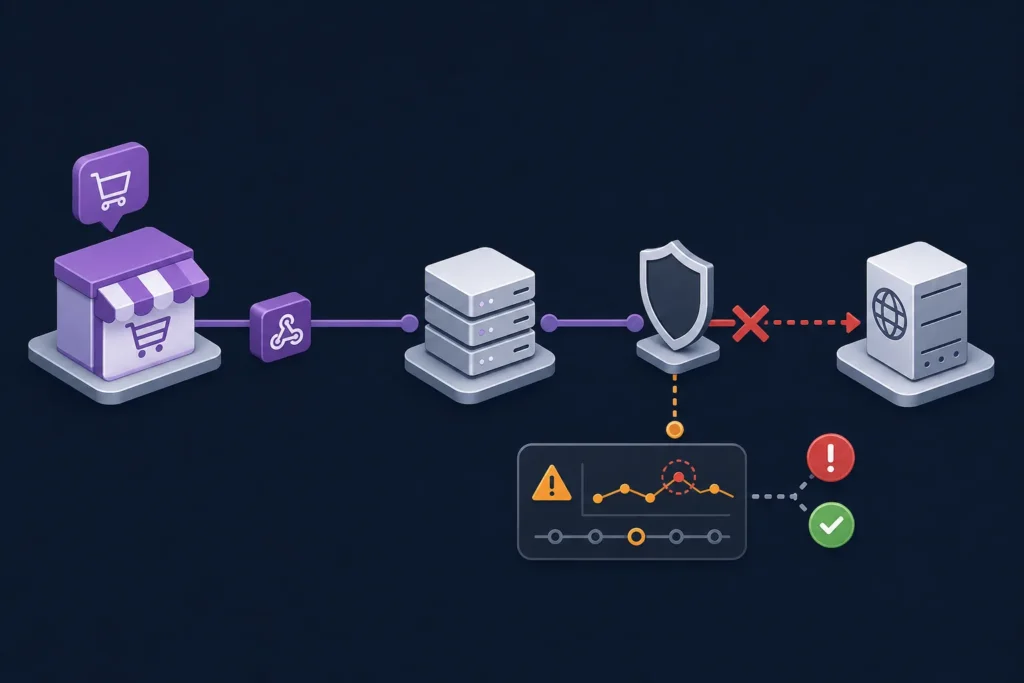
When WooCommerce webhooks are not working, start by finding the stage that failed: the event did not trigger, WooCommerce did not create a delivery attempt, the request could not reach the endpoint, or the receiving application rejected it. That sequence prevents a common mistake: changing webhook settings when the actual problem is an unavailable receiver, failed signature check, or firewall rule.
Before changing anything, note the WordPress version, WooCommerce version, active plugins, hosting environment, webhook topic, and endpoint URL. Webhook screens, logging detail, and integration behavior can vary by version and setup. Then use a controlled test event rather than a live customer action whenever possible.
Quick checks before deeper troubleshooting
- Confirm the webhook exists and is configured for the event you are actually testing.
- Check that its status is active or enabled, not paused or disabled.
- Compare the delivery URL, topic, API version, and secret with the receiver’s expected values.
- Save the configuration, then create one small test event that should match the topic exactly.
- Check for a new delivery record before assuming WooCommerce never triggered the webhook.
If you need to revisit the setup itself, see WooCommerce Webhooks in 2026: Modern Automation Patterns for broader configuration and design context.
1. Confirm the webhook configuration
Open the webhook’s settings and compare every value against the receiving application’s documentation or configuration. The delivery URL must include the exact path expected by the receiver. A correct domain with a missing path segment, an old environment name, or a trailing route difference can send requests somewhere that does not process them.
- Make sure the selected topic matches the action you perform. An order-created event, for example, is not necessarily the same as an order-updated event.
- Review the configured API version before changing it. A version change can alter the payload shape expected by older receiver code.
- Check for duplicate webhooks pointing to old and new endpoints. Duplicates can make a healthy integration look unreliable or create duplicate downstream actions.
- Confirm that the endpoint is for the intended environment: local, staging, or production.
2. Check webhook status and delivery logs
The key question is whether WooCommerce created an outbound delivery attempt. Review the webhook status and any available delivery history or related WooCommerce and WordPress logs. Use a newly generated test event so timestamps are easy to correlate.
For each attempt, record the event time, delivery time, destination URL, HTTP response code, response body if available, and request duration. Also check the receiving application’s logs at the same time. This gives you a clean split:
- No delivery attempt: investigate the topic, webhook status, and whether the test action really caused the expected event.
- A delivery attempt with an error: investigate the URL, network path, receiver response, and payload validation.
- A successful response but no downstream result: investigate the receiver’s internal processing after it accepted the request.
3. Interpret HTTP responses and timeouts
An HTTP status is a diagnostic clue, not a complete verdict. A 2xx response generally shows that the endpoint accepted the HTTP request. It does not prove that a queue worker, CRM update, fulfillment action, or other downstream task completed successfully.
- 3xx responses: check redirects. Webhook endpoints should normally accept the request directly rather than relying on a login, HTTP-to-HTTPS, or canonical-host redirect.
- 4xx responses: check the URL, authorization, signature verification, required headers, content type, and JSON validation.
- 5xx responses: inspect application and server error logs. The receiver may have thrown an exception or become unavailable.
- Timeouts: check DNS, TLS, firewall rules, slow application startup, and expensive work performed before the endpoint responds.
A practical receiver pattern is to validate and persist the incoming event quickly, return an acknowledgement, and handle slow work in a background process. Do not return success before you have safely recorded enough information to process the event later.
4. Verify authentication, signatures, and payload handling
Many webhook failures occur after the request arrives. Confirm that both systems use the same secret and that the receiver is reading the headers and request body in the expected format. Treat the webhook secret as a credential: do not place it in client-side code, screenshots, public tickets, or ordinary debug logs.
If your receiver verifies a signature, calculate it from the raw request body before a framework parses or reformats JSON. Re-serializing parsed JSON can change whitespace, key ordering, or encoding and cause a valid request to fail verification.
- Confirm the receiver reads the correct signature header for the integration.
- Confirm it uses a timing-safe comparison where the language or framework provides one.
- Check the expected content type and JSON structure.
- Validate optional and missing fields defensively; payloads can differ by event type and configuration.
Log only what helps diagnose the issue: timestamp, request ID or event identifier, route, status, validation outcome, and a redacted error. Avoid logging full secrets, authorization headers, payment data, or unnecessary customer data.
5. Test SSL, DNS, firewalls, and hosting access
A correctly configured webhook still cannot work if the endpoint is unreachable from the public internet. Check that the delivery host resolves to the intended server from outside your local network and that the route is publicly accessible where it needs to be.
- Use a valid, trusted HTTPS certificate and a TLS configuration supported by both sides.
- Make sure the endpoint is not limited to a private network, VPN, or local development hostname.
- Review hosting firewall, CDN, WAF, bot-protection, rate-limit, and server access logs for blocked requests.
- Check IP allowlists carefully. Do not assume webhook requests always originate from one fixed address unless that has been verified for your specific environment.
Also look for basic authentication, maintenance pages, geo restrictions, or a security challenge placed in front of the route. These protections may be appropriate for a site, but they can prevent a machine-to-machine request from reaching the handler.
6. Check WordPress, permalinks, and plugin conflicts
If the endpoint is handled by WordPress, a broken route can be mistaken for a WooCommerce problem. Resave permalinks when the receiver depends on WordPress rewrite rules, then retest the exact endpoint. Check that staging protections, maintenance mode, password protection, and server-level access rules are not intercepting the request.
Security, caching, redirect, and optimization plugins can also modify requests or routes. In a safe staging environment, temporarily isolate one suspected component at a time and repeat the same controlled test. Review WordPress and WooCommerce logs for fatal errors, warnings, or rejected requests while testing. Do not disable production protections broadly just to test a webhook.
7. Separate trigger problems from receiver problems
Use the same test event and timestamps on both sides of the integration. First, perform an action that clearly matches the configured topic. Then compare the WooCommerce delivery record with the receiver’s access and application logs.
If permitted, send a comparable request to the endpoint with an API testing tool. This tests routing, TLS, authentication, and handler behavior independently of WooCommerce. It does not replace a real webhook test, because the authentic request headers and signature must still be handled correctly.
For workflows that send events to n8n, follow the receiver-side setup in How to Connect WooCommerce to n8n Step by Step. Test in a separate workflow or with a harmless test order when possible, rather than changing a live fulfillment process.
8. Handle retries, duplicates, and delayed deliveries
Do not build a receiver that assumes every event arrives once and immediately. A delivery can be delayed, retried after a failure, or repeated for operational reasons. Your endpoint should be idempotent: processing the same event again should not create a second shipment, refund, email, or CRM record.
- Store an event identifier or another reliable deduplication key before applying side effects.
- Return a response promptly after validation and durable recording.
- Move slow API calls, file processing, and complex business logic to a queue where appropriate.
- Document how your current environment handles failed deliveries and any replay procedure you use.
If duplicate deliveries affect fulfillment, a dedicated process is useful. See Order Fulfillment Automation for E-Commerce: A Complete Guide for broader workflow considerations.
9. Check recent environment and version changes
If a webhook worked previously, compare what changed around the first failure. Check WordPress and WooCommerce updates, plugin changes, PHP or server configuration updates, DNS changes, certificate renewals, CDN or WAF rules, endpoint deployments, and secret rotation. Avoid assuming a platform change is the cause; use timestamps and logs to connect a change to the failure.
Record the versions and configuration relevant to the incident. This makes the eventual fix repeatable and gives you a useful baseline when the next update is planned.
10. Verify the fix and prevent recurrence
After making a change, do more than wait for one successful request. Trigger more than one relevant test event and confirm the full path: WooCommerce created the delivery, the endpoint accepted it, authentication passed, the payload was processed, and the intended business action happened exactly once.
- Verify the configured topic and endpoint with a fresh event.
- Check the response code and receiver logs for every test.
- Confirm that deduplication does not suppress legitimate new events.
- Document the root cause, fix, environment details, and any version-sensitive behavior.
- Add monitoring or a regular log review so a new failure is found before it disrupts a workflow.
Final troubleshooting sequence
Work in this order: confirm the webhook configuration, create a safe test event, find the WooCommerce delivery attempt, interpret the HTTP result, inspect the receiver, then check the network and WordPress environment. This isolates the failing stage quickly and avoids risky production changes based on guesses.
For ideas on what to build once delivery is reliable, explore WooCommerce on Autopilot: Actionable Workflow Automation Examples. Bookmark this checklist as an incident runbook for future webhook failures.