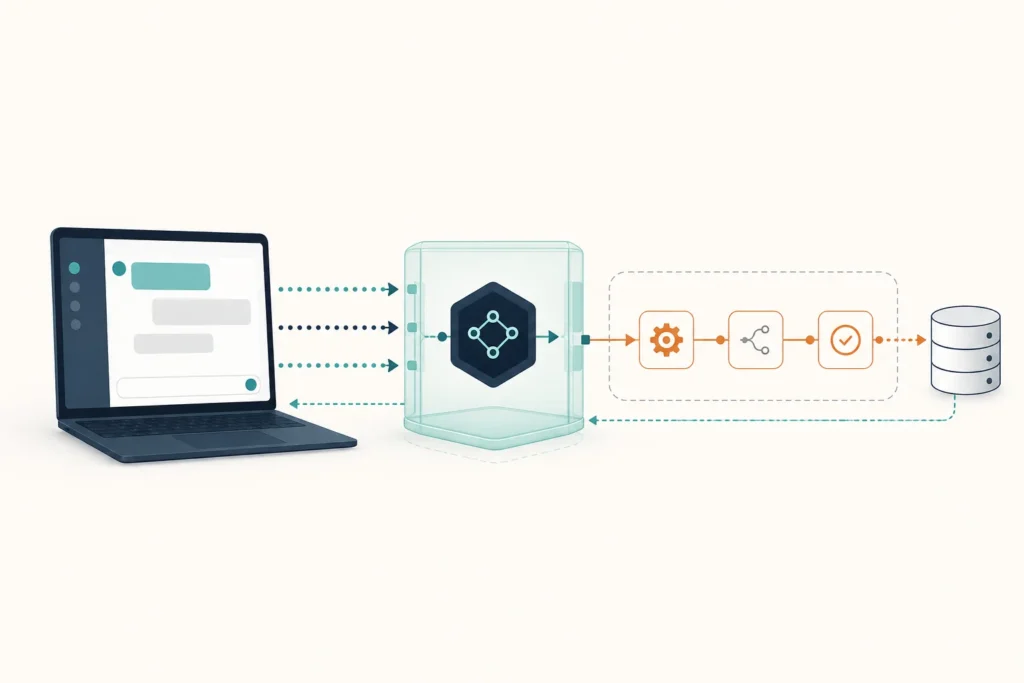
An n8n MCP server setup can expose selected workflow-backed tools to an AI client without giving that client unrestricted access to your n8n instance. This guide uses n8n’s MCP Server Trigger as the server implementation and Claude Code as the client. The primary deployment model is a running n8n instance reachable by HTTPS; Claude Code connects to the MCP URL that n8n generates.
Use this walkthrough only when your installed n8n version includes the MCP Server Trigger node and Claude Code supports HTTP MCP servers. Interface labels and authentication options can change between releases, so confirm the node options and CLI help in your environment before enabling a production tool.
Quick answer
- In n8n, create a dedicated workflow and add an MCP Server Trigger node.
- Connect only a low-risk tool or workflow action to that trigger, then activate the workflow.
- Copy the trigger’s Production MCP URL; do not guess the endpoint path.
- In a terminal with Claude Code installed, add that URL as an HTTP MCP server.
- Use Claude Code’s MCP view to confirm the expected tool appears, then make one safe request and inspect the corresponding n8n execution.
MCP is the connection protocol, not an authorization shortcut. The workflow, its validation, its n8n credentials, and the network boundary still decide what a discovered tool can do.
Deployment and prerequisites
This guide’s process boundary is straightforward: n8n runs as an already deployed service, the MCP Server Trigger listens through n8n’s generated production URL, and Claude Code runs on a machine that can reach that URL. A local command-based MCP server is not required for this n8n setup.
- An n8n deployment with the MCP Server Trigger node available.
- Permission to create, save, activate, and inspect a test workflow.
- A public or private HTTPS route from the Claude Code machine to the n8n production URL. Use a VPN or private network route when the endpoint should not be internet-accessible.
- Claude Code installed and available as the
claudecommand. - A safe test action with predictable output. Do not use order creation, email sending, payments, publishing, or record deletion as the first tool.
Record your n8n version, Claude Code version, operating system, n8n deployment method, and the date you configured the connection alongside your internal runbook. This article does not assert a tested version combination; those recorded values are the compatibility baseline for your own deployment.
If you are new to n8n workflows, read this introduction to n8n and practical workflow automation before exposing a business process through MCP.
Create the n8n MCP tool
Build the server in a new test workflow, not in an existing production workflow. In the n8n editor, select Add node, search for MCP Server Trigger, and add it as the workflow trigger. This node is the concrete n8n configuration path that publishes tools to an MCP client.
- Name the workflow
MCP Test: Echo Message. - Add the MCP Server Trigger node.
- Add one tool or workflow-backed action supported by the node configuration in your release, and connect it to the MCP Server Trigger.
- Give the exposed tool an unambiguous name and description, such as
echo_message: “Returns a validated test message. It does not change external data.” - Define one required text input named
message. Validate that it is text and reject empty or unexpectedly large values before any downstream action. - Return a small structured result, for example
{"message":"MCP connection check"}. - Configure authentication in the MCP Server Trigger if your deployment supports and requires it. Do not leave a remotely reachable endpoint unauthenticated.
- Save and activate the workflow.
After activation, open the MCP Server Trigger and copy the Production MCP URL displayed by the node. That displayed URL is the endpoint to use in the client. It accounts for your n8n host, base path, trigger path, and deployment configuration; replacing it with a guessed /mcp path can cause a connection failure.
Keep downstream credentials in n8n credential storage or your deployment’s secret mechanism. Do not accept API tokens as tool inputs, and do not embed them in a tool description.
Connect Claude Code to n8n
For this HTTP deployment, add the server from the Claude Code terminal rather than creating a local process definition. Replace only the URL below with the exact Production MCP URL copied from the n8n MCP Server Trigger:
claude mcp add --transport http n8n-test https://YOUR-N8N-HOST/YOUR-PRODUCTION-MCP-URLn8n-test is the local server name shown in Claude Code. The URL must be the complete n8n-generated Production MCP URL, not a dashboard URL and not a webhook URL copied from a different node.
If the trigger requires client authentication, use the authentication method and CLI options supported by your installed Claude Code version rather than placing a secret in the URL. Run claude mcp add --help to confirm the supported authentication or header syntax before adding credentials.
Claude Code stores the connection after the command succeeds. Confirm that the client recognizes it with:
claude mcp listThen start or reopen a Claude Code session and open its MCP management view with /mcp. The server named n8n-test should be listed. If the connection was added to a project-specific configuration, open Claude Code from that same project when testing it.
Other MCP clients can use the same n8n Production MCP URL, but their settings location and HTTP configuration schema differ. Do not reuse a Claude Code command as JSON for another client.
Verify discovery and execution
In Claude Code, use /mcp to inspect the n8n-test connection and confirm that only the expected test tool is available. The displayed tool should correspond to the name and input you configured in n8n, such as echo_message with a required message field.
Then send a specific request:
Use the n8n-test echo_message tool with the message “MCP connection check”. Return only the tool result.
A successful test has three signals:
- Claude Code selects the expected n8n-backed tool rather than reporting an unavailable-server or tool-discovery error.
- The tool result contains the expected safe response.
- In n8n, the workflow’s execution history shows a new execution at the same time as the Claude Code request, with the expected input and output.
Open that execution before expanding scope. Confirm that validation ran, the intended tool was called, and no unintended downstream node performed an action. If n8n provides an execution ID in your implementation, retain it with the client request record; otherwise correlate by workflow name, timestamp, and test message.
Secure the integration
- Expose one narrowly scoped workflow capability at a time.
- Use separate test and production workflows, endpoints, and credentials where practical.
- Require authentication and HTTPS for any endpoint reachable beyond a trusted local network.
- Restrict network access with a private route, VPN, firewall, or reverse-proxy policy appropriate to your environment.
- Validate required fields, types, lengths, and allowed values inside the workflow.
- Use drafts, approval steps, or human confirmation for payments, deletion, publishing, customer communication, and other consequential actions.
- Review exposed tools, n8n executions, access logs, and credentials after the first test and periodically thereafter.
A well-written prompt is not a security control. The MCP tool description, the workflow input validation, credential permissions, and network access rules are the operational boundary.
Troubleshoot by failure stage
1. Claude Code cannot add or start the server
Run claude mcp list and inspect the server entry. Confirm that Claude Code is installed, that you used --transport http, and that the copied value is the complete Production MCP URL from the active MCP Server Trigger. Run claude mcp add --help if the command syntax is rejected by your installed version.
2. The server is listed but cannot be reached
Check that the n8n workflow is active and that the Claude Code machine can reach the production URL. Inspect reverse-proxy, firewall, container, and TLS logs for the request. A dashboard that loads in a browser does not prove that the generated MCP URL is reachable or that its certificate is trusted by the client.
3. The connection works but no tool appears
Open the MCP Server Trigger workflow and verify that the intended tool or workflow-backed action is connected and enabled for exposure. Save and reactivate after changes, then reopen Claude Code and inspect /mcp again. If extra tools appear, stop testing and reduce the trigger’s exposed scope.
4. A tool appears but execution fails
Open the matching n8n execution. A validation error points to the tool input contract; a failed workflow node points to workflow logic; and an authorization error in a downstream node points to that service’s n8n credential or permission. Keep validation in place while correcting the request or workflow.
5. The workflow runs but the client receives an unexpected result
Compare the tool response formatting with the MCP tool’s expected output. Check the final node or tool response path, confirm that error branches return useful errors, and test again with the same simple message. Change one setting at a time and retain the timestamp or execution ID for each attempt.
Next steps
After the echo tool is stable, add one reviewed capability at a time. For WooCommerce-related automation, begin with constrained reads or draft-only actions; see how to connect WooCommerce to n8n step by step for related integration context.
Document the n8n workflow name, Production MCP URL ownership, Claude Code server name, authentication method, exposed tools, credential owner, rollback process, and recorded version baseline. Recheck the setup after n8n or Claude Code updates. For broader store workflows, explore practical WooCommerce automation ideas after your MCP connection is verified.