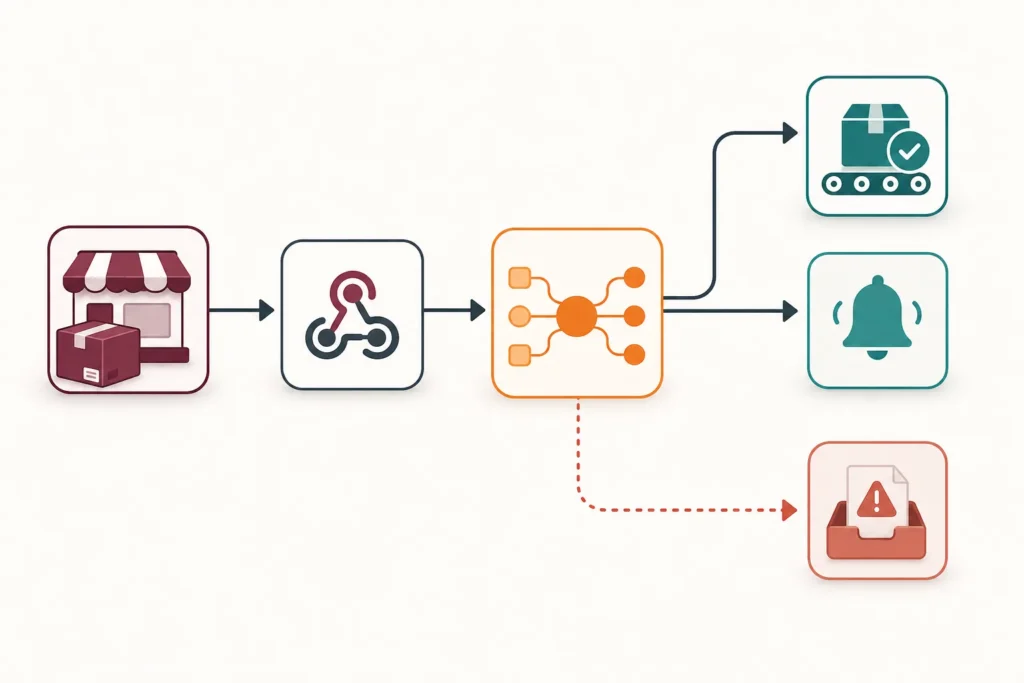
A complete WooCommerce order workflow in n8n should do more than react to a webhook. It should confirm the order, turn inconsistent store data into a predictable structure, decide whether the order is actionable, run only the required downstream actions, and leave a useful trail when something fails.
This example uses an order event to send an internal order summary and optionally create a fulfillment record. The same mapped order object can later feed a CRM, spreadsheet, task system, warehouse tool, or customer-safe notification without rebuilding the workflow logic.
What This Workflow Builds
The workflow follows this path:
- WooCommerce sends an order-related event to n8n.
- n8n identifies the WooCommerce order ID and checks that the event is worth processing.
- n8n retrieves the full order when the event payload is incomplete or may be stale.
- A mapping step creates one stable order structure for all later nodes.
- Conditions route paid, cancelled, refunded, incomplete, digital, physical, or pickup orders differently.
- A duplicate check prevents the same order event from creating the same downstream action twice.
- n8n sends a notification, creates a fulfillment record, or both.
- An error path captures enough context for an operator to investigate.
For wider ideas beyond orders, see WooCommerce on Autopilot: Actionable Workflow Automation Examples.
Prerequisites and Workflow Design
Start after the WooCommerce-to-n8n connection is working. If you still need that foundation, follow How to Connect WooCommerce to n8n Step by Step first.
Before adding nodes, write down the decisions the workflow must make:
- Trigger event: decide whether the workflow reacts to order creation, an order update, a particular status change, or a dedicated webhook event.
- Actionable statuses: for example, you may process orders only after a payment-related state your store treats as valid. Do not assume every store uses the same status rules.
- Destination: choose one initial action, such as an internal notification or fulfillment record. Prove that path before adding more destinations.
- Idempotency key: decide what uniquely identifies a completed action, commonly the order ID plus the action name and, where necessary, a status or event identifier.
- Exception owner: specify who checks failed executions and how they can safely retry or correct an order.
Record your WordPress, WooCommerce, n8n, and destination-service versions in the workflow documentation. Node labels and options can differ between n8n releases, so verify version-sensitive settings in your own instance.
Receive and Confirm the WooCommerce Order Event
Use your existing WooCommerce trigger or webhook configuration as the first node. Inspect a real controlled test execution and locate the order identifier. Depending on the trigger setup, it may appear as id, order_id, or inside a nested payload.
Add an early validation node before any external action. Its job is to reject malformed events and events that should not run this workflow. At minimum, check that an order ID exists and that the event contains, or can be used to retrieve, a status.
// Example validation logic; adapt field paths to your trigger payload
const orderId = $json.id ?? $json.order_id;
if (!orderId) {
  throw new Error('Webhook payload does not contain an order identifier');
}
return [{ json: { orderId } }];
A webhook payload is useful for starting a workflow quickly, but it is not always the best source for operational data. Retrieve the order again when the payload is abbreviated, when your action requires line-item or address details, or when an update event could have arrived before another store-side change has settled. A fresh read also gives later nodes one known source of truth.
Use the WooCommerce node or an authenticated HTTP request configured for your store to retrieve the order by its ID. Verify the execution data: it should show the expected order number, status, totals, customer details, and line items before you continue.
Retrieve and Map Order Data in n8n
Do not make every later node interpret raw WooCommerce fields. Add a Set, Edit Fields, or Code node that produces a small, explicit object. Clear names make expressions easier to read and reduce accidental use of billing data where shipping data is required.
// Example normalized object. Confirm WooCommerce field paths in your execution data.
return [{
  json: {
    orderId: $json.id,
    orderNumber: $json.number,
    status: $json.status,
    total: $json.total,
    currency: $json.currency,
    paymentMethod: $json.payment_method,
    customer: {
      email: $json.billing?.email ?? null,
      firstName: $json.billing?.first_name ?? null,
      lastName: $json.billing?.last_name ?? null
    },
    shipping: {
      firstName: $json.shipping?.first_name ?? null,
      lastName: $json.shipping?.last_name ?? null,
      address1: $json.shipping?.address_1 ?? null,
      city: $json.shipping?.city ?? null,
      postcode: $json.shipping?.postcode ?? null,
      country: $json.shipping?.country ?? null
    },
    items: ($json.line_items ?? []).map(item => ({
      productId: item.product_id,
      variationId: item.variation_id ?? null,
      sku: item.sku ?? null,
      name: item.name,
      quantity: item.quantity,
      total: item.total,
      meta: item.meta_data ?? []
    }))
  }
}];
Keep identifiers, quantities, variation IDs, and required selected metadata. A product name alone is usually not enough for fulfillment or reporting. Conversely, do not forward the entire order object to every service; pass only fields the destination needs.
Billing and shipping are not interchangeable. Digital orders may not need a shipping address, while physical orders usually do. Preserve null values rather than quietly substituting inaccurate data.
Add Conditions and Branching Logic
After normalization, use an If or Switch node to route the order. A practical first branch is status:
- Actionable paid or processing path: run fulfillment or internal operational actions.
- Cancelled or refunded path: notify an operator, update a downstream record, or stop without creating fulfillment.
- Other or unknown path: log for review rather than guessing.
Add a second validation branch for destination-specific requirements. For example, a physical fulfillment route can require shipping.address1, shipping.city, shipping.postcode, and shipping.country. If one is missing, route to an exception notification with the order ID and missing field names. Do not send an incomplete address to a fulfillment system.
Use separate branches where the business logic differs: pickup orders might create a collection task; digital orders might skip shipping; high-value orders might require manual review. Define these rules from your store’s own policies rather than relying on a universal total threshold.
Prevent duplicate actions
Webhook delivery can be retried, an order can be updated repeatedly, and an execution can fail after one destination succeeds. Protect each irreversible action with an idempotency check.
For example, create a key such as fulfillment:{orderId}, look it up in a persistent store or destination system, and proceed only if it has not been recorded. Write the successful key immediately after the destination confirms success. If the destination supports its own idempotency identifier, use a stable order-based value there too.
A status-only rule is not enough: an order may receive multiple updates while retaining the same status. Decide whether an action is once per order, once per status transition, or once per fulfillment shipment, then design the key accordingly.
Trigger Downstream Order Actions
Keep a single normalized object as the input to downstream nodes. For an internal notification, include a concise summary: order number, status, total and currency, customer name or email only if needed, item names and quantities, and a direct operational reference if your destination supports it.
For a fulfillment record, send the minimum required shipping and line-item fields. Create an explicit success path after that node, where you store the idempotency key or update the downstream record state.
If you add a customer message, make it conditional and customer-safe. Avoid treating an internal fulfillment event as proof that a parcel has shipped. Customer-facing wording should match an event you can actually verify.
To extend the workflow, branch from the mapped order object rather than chaining unrelated actions one after another. That lets notifications, CRM updates, and fulfillment actions evolve independently while sharing the same source data. For a broader fulfillment design, read Order Fulfillment Automation for E-Commerce: A Complete Guide.
Error Handling, Security, and Reliability
Set up an n8n error workflow or a clearly defined error branch. Capture the execution ID, order ID, action name, error message, and destination response where available. Limit logs and alerts to the data required to diagnose the failure; full addresses, payment-related fields, and complete customer payloads rarely belong in routine alerts.
- Keep webhook endpoints difficult to guess and restrict access where your deployment supports it.
- Store WooCommerce API keys and destination credentials in n8n credentials, not directly in node fields or code.
- Grant API credentials only the permissions required for the workflow.
- Use deliberate retry behavior for temporary destination failures, but avoid retrying an action blindly when partial success is possible.
- For a timeout or uncertain response, check the idempotency record or destination before retrying.
Partial success needs an operational rule. If a notification succeeds but fulfillment creation fails, retry only fulfillment. If fulfillment may have succeeded but n8n did not receive a response, verify the destination using the order ID before creating another record.
Test and Verify the Completed Workflow
Use a controlled test order or a safe test environment before enabling production handling. For each scenario, compare the n8n execution with the WooCommerce order record and the downstream result.
| Scenario | Expected check |
|---|---|
| Actionable order | Correct order is retrieved, fields are mapped, intended branch runs, and one downstream record or notification is created. |
| Cancelled or refunded order | Fulfillment does not run; the selected exception or update path runs instead. |
| Missing address | Physical fulfillment stops and the exception path identifies the missing fields. |
| Duplicate event | The second execution detects the existing key and does not repeat the protected action. |
| Destination failure | The error workflow records actionable context and the retry process cannot create an unintended duplicate. |
Document expected values for your store, especially the accepted statuses, payment methods, shipping requirements, and idempotency behavior. Repeat this matrix after changing credentials, trigger configuration, destination fields, or core workflow logic.
Troubleshooting and Next Steps
If the automation does not run, first confirm that WooCommerce delivered an event to the expected n8n endpoint. Then inspect the trigger execution, verify the order ID expression, check WooCommerce credentials and permissions, and inspect the first node that failed. Empty mapped fields usually mean the expression points to the webhook payload when it should reference the retrieved order, or the store does not have that field populated.
If an unexpected branch runs, inspect the normalized status, shipping fields, item metadata, and data types used by the condition. If duplicates appear, examine whether the idempotency key is written only after confirmed success and whether retries bypass the duplicate check.
Next, continue with What Is n8n and How It Works with WooCommerce: Complete Beginner Guide to plan related store workflows and expand this order foundation carefully.