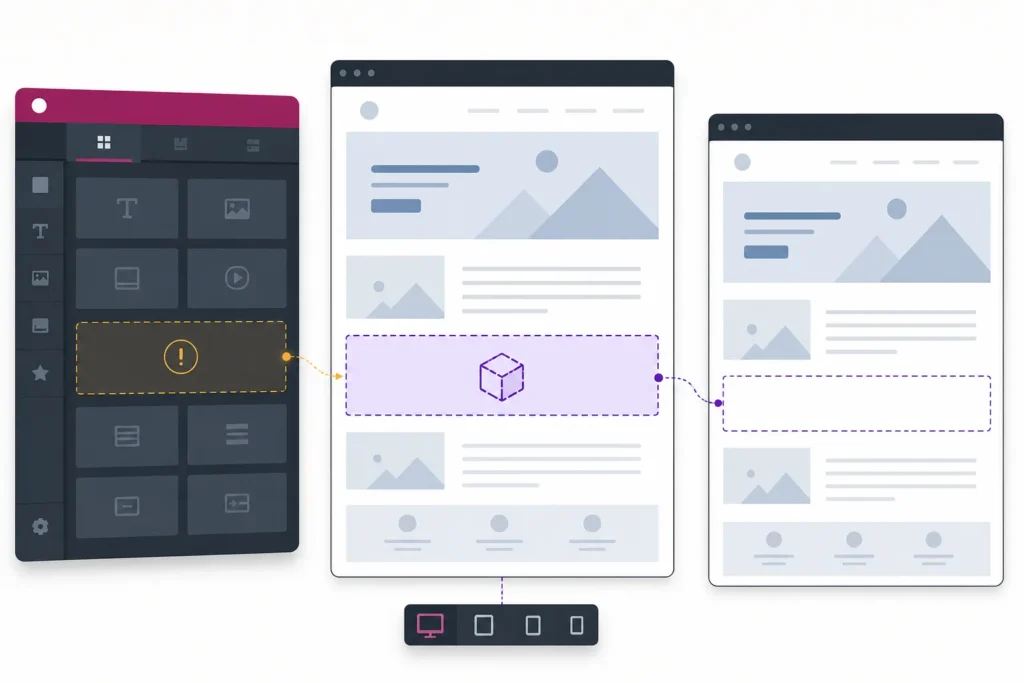
If an Elementor widget is not showing, first determine where it is missing: the widget panel, the Elementor editor canvas, the published frontend, or only a specific device size. That distinction prevents unnecessary changes and usually points to the right fix.
Start with the low-risk checks below. Save a backup before changing plugins, themes, or global Elementor settings, and retest after each individual change.
Quick checks before deeper troubleshooting
- Check the widget panel. Open the affected page with Elementor and search for the widget by name. If it is absent here, the issue is availability rather than page layout.
- Select the widget or its parent container. If it exists on the canvas but appears blank, inspect the widget, container, column, and section settings.
- Update and preview separately. Click Update or Publish, then use a normal browser preview rather than relying only on the editor canvas.
- Clear the obvious caches. Clear your browser cache and any WordPress page-cache or optimization-plugin cache before assuming the update failed.
- Scope the problem. Note whether it affects one widget, every instance of that widget, one page, one template, or the entire site. Also test desktop and mobile widths.
A widget that is visible in the editor but missing from the public page is commonly a responsive, template, cache, or frontend asset issue. A widget missing from the panel is more likely related to Elementor settings, an addon, or a required premium component.
Check Elementor widget availability and settings
First confirm which plugin supplies the widget. Some widgets are part of Elementor itself, some require Elementor Pro, and others come from third-party addon plugins. A page can retain an old widget configuration even after the plugin that provided it has been deactivated or changed.
If the widget is missing from the widget panel
- Search the panel using the widget name and look through the relevant category.
- Review Elementor’s available widget, feature, or editor settings and make sure the widget has not been disabled.
- If it is a Pro or third-party widget, confirm that the associated plugin is active and that any required license or account connection is valid for that environment.
- Check for widget-manager settings, role restrictions, editor filters, or addon controls that hide selected widgets.
- Compare the widget name with the current addon interface. An update may rename, relocate, replace, or remove a widget.
To enable a disabled widget, use the control supplied by the plugin that owns it. This may be in Elementor settings, an addon’s dashboard, or a widget manager. Avoid enabling every optional widget simply to test one issue; doing so can add unnecessary editor clutter and may make diagnosis harder.
Verify the result: reload the Elementor editor after saving the setting. Search for the widget again, add it to a blank test page, and update that page. If it works on the test page but not the original page, continue with layout, template, or page-specific checks.
Fix editor loading and configuration problems
When a widget appears in the panel but cannot be dragged in, renders as a blank area, or causes the editor to stall, the editor may be encountering a JavaScript, asset-loading, or configuration problem.
- Save the page if possible and make a backup before changing site-wide options.
- Use Elementor’s maintenance or tools area to regenerate CSS and data when that option is available in your installed version. The wording and location can differ between releases.
- Reload the editor in a private browsing window. Disable browser extensions, especially script blockers, password managers, ad blockers, and developer tools that modify page content.
- Open the browser developer console and network panel. Look for JavaScript errors, failed requests, blocked files, or authentication failures occurring when the editor loads.
- Review Elementor editor-loading options only if the normal editor is failing. Change one option at a time, save it, and retest the same page.
Console errors do not always identify the root cause, but the failing file, plugin-related path, or error timing can narrow the investigation. Record the exact message instead of relying on a screenshot alone.
Verify the result: test the affected widget on a new blank page. If it now renders there, revisit the original page’s hierarchy and templates. If the new page also fails, move to conflict isolation.
Test plugin, addon, and theme conflicts
Optimization plugins, Elementor addons, security tools, and theme features can affect the scripts, styles, markup, or requests that a widget needs. The safest way to find a conflict is controlled isolation rather than disabling many things permanently.
A safe isolation process
- Create a backup or use a staging site if one is available.
- Keep WordPress and Elementor active. Temporarily deactivate nonessential plugins, starting with optimization, cache, minification, and Elementor addon plugins.
- Test the same page while logged in and then as a logged-out visitor.
- Reactivate plugins one at a time, testing after each activation. The plugin that reintroduces the failure is a useful lead, not automatic proof that it is solely at fault.
- For a theme comparison, temporarily switch to a compatible default WordPress theme in a safe environment. Do not make a production theme change without considering affected layouts and customizations.
If an addon supplies the missing widget, test that addon separately from other Elementor extensions. Two addons may modify the same editor controls or load overlapping frontend assets.
Verify the result: document the active theme, active plugins, widget name, and the smallest combination that reproduces the problem. Check compatibility notes for your installed WordPress, Elementor, theme, and addon versions before applying updates. Compatibility should be confirmed for your specific environment rather than assumed from version numbers alone.
Check responsive visibility and layout conditions
A widget can exist and load correctly but still be hidden at a particular viewport width. This is especially common when desktop, tablet, and mobile controls have been edited at different times.
Select the widget in Elementor and inspect its Advanced settings, including responsive visibility controls. Then inspect every parent level: nested containers, columns, sections, tabs, accordions, popups, loop items, and template wrappers.
Settings that can make a widget appear missing
- Hide-on-desktop, tablet, or mobile settings.
- Display settings that remove the element from the layout.
- Opacity set to zero or a color that blends into the background.
- Absolute or fixed positioning that moves the widget outside the visible area.
- A low z-index behind another element, or a stacking-context issue in a parent.
- Overflow hidden on a parent container that clips positioned content.
- Zero height, collapsed width, excessive negative margins, or restrictive minimum-height settings.
- Conditional display rules provided by an addon.
Use Elementor’s responsive preview as a starting point, then compare it with a real browser window at the affected width. Preview modes may not reproduce every theme style, browser behavior, or cache condition.
A useful test is to place a simple Heading widget in the same parent container. If the Heading is also hidden, the problem is likely in the parent layout or responsive settings. If the Heading works while the original widget does not, inspect that widget’s own options and any addon-specific conditions.
Verify the result: temporarily reset only the suspicious setting, update the page, and test the exact viewport where it was failing. Do not reset unrelated styling until you know which level is responsible.
Investigate templates, theme conditions, and permissions
Sometimes the content being edited is not the content visitors see. Elementor Theme Builder templates, theme page templates, loop templates, headers, footers, popups, and archive layouts can override or replace the expected page area.
- Confirm that you are editing the correct page, post, product, archive, or template.
- Review the display conditions assigned to the relevant Theme Builder template.
- Check whether another template has a broader condition that takes precedence for the affected content type.
- Review the page’s layout or template selection in WordPress. A theme-specific template can omit the normal content area or introduce conflicting markup.
- Check header, footer, popup, loop, and archive templates if the missing widget is expected in one of those contexts.
- Make sure the current user role can edit the page and access the Elementor features used by the layout.
Create a new test page with the same page layout and add the widget directly to it. If it works there, compare the original page’s template assignment, custom fields, conditions, and parent layout. If the widget is part of a template, test the template in the specific display context where it is supposed to appear.
Verify the result: view the page while logged out. An administrator may see editing controls, cached variants, or role-dependent content that ordinary visitors do not see.
Clear caches and regenerate published assets
Editor and frontend differences often come from stale CSS, JavaScript, HTML, or CDN copies. Updating a page does not always immediately replace every cached asset delivered to visitors.
- Update the affected page or template.
- Regenerate Elementor CSS and data through its available tools or maintenance area.
- Clear caches in any page-cache, performance, or optimization plugin.
- Purge server, host, reverse-proxy, or CDN caches if your setup uses them.
- Temporarily exclude the affected page from minification, JavaScript delay/defer, CSS combination, or unused-CSS processing to test whether optimization changes the output.
- Retest in a logged-out private window and on more than one device size.
If disabling an optimization feature makes the widget appear, re-enable other features first and isolate the smallest setting that breaks it. A broad permanent disable may solve the symptom while sacrificing useful site behavior unnecessarily.
Verify the result: compare the page source or browser network activity before and after the change if you are comfortable doing so. Confirm that visitors receive the updated page rather than only seeing a change in the logged-in editor.
Final diagnostic checklist and prevention
Before requesting technical support, collect details that let another person reproduce the issue:
- The widget name and whether it is Elementor core, Pro, or third-party.
- The affected page or template and whether a new test page has the same issue.
- Whether it is missing from the panel, editor, frontend, or only certain breakpoints.
- Your WordPress, Elementor, Elementor Pro, theme, and relevant addon versions.
- The active theme and a list of plugins involved in the isolated test.
- Exact browser console errors, failed requests, or server error messages.
- Whether clearing caches, regenerating assets, switching themes, or deactivating a specific plugin changes the result.
- Clear reproduction steps, including user role, device width, and template conditions.
For prevention, review compatibility before major updates, keep a tested backup routine, and apply one configuration change at a time. Recording the cause and fix is valuable: the same optimization, template condition, or addon interaction can affect future pages.
The practical order is simple: identify where the widget disappears, confirm it is available, check visibility and parent layout, verify the correct template, clear stale assets, then isolate plugins and the theme. That sequence preserves the page configuration while giving each test a clear meaning.